


Reservation offers
This module is a comprehensive tool for creating and managing booking offers for your hotel. One example of how to use Offers is when handling phone inquiries, such as when a guest finds your property on a map and calls the hotel directly without visiting your website or another booking portal. Similarly, prospective guests may call to inquire about a customized offer, including additional services, or they may have a gift voucher from relatives and not know how to redeem it or what they can purchase with it at your property.
You can send the inquirer several offer options, and the recipient can then select a specific option in a clear, graphical interface and immediately confirm and pay for the reservation based on the sent offer.
The Offers module provides an alternative to the traditional web booking engine and helps the front desk process inquiries more quickly. Receptionists no longer need to list available dates over the phone or write everything out in an email. Instead, they simply create an offer and send it to the prospective guest via email.
Let’s take a closer look at the settings and features of this module.
Settings
The Offers module is automatically enabled for the PRO version.
Before we move on to creating offers, it’s important to note that the price of your offers and room availability are based on the selected rate plan. By default, this is the basic rate plan, but you can adjust this setting in the Channel Manager / My Connections section for Offers partner.

The meal plan and payment terms are then linked to the pricing plan. You can find these settings directly in the pricing plan settings.
You can use rate plan settings to create a customized offer for prospective customers. The final price can then be further adjusted with additional discounts; see below.
Creating an Offer
Now let’s move on to creating your first offer. Most common and fast way how to create an Offer is from Reservation calendar. Click on the side of the “New Reservation” button in the upper-right corner above the reservation list and select “New Offer.”

Alternative way is to go through the Offers module and click the New Offer+ button in the top-right corner.
In the window that opens (both from calendar or from offers module), you’ll then set up the following step by step:
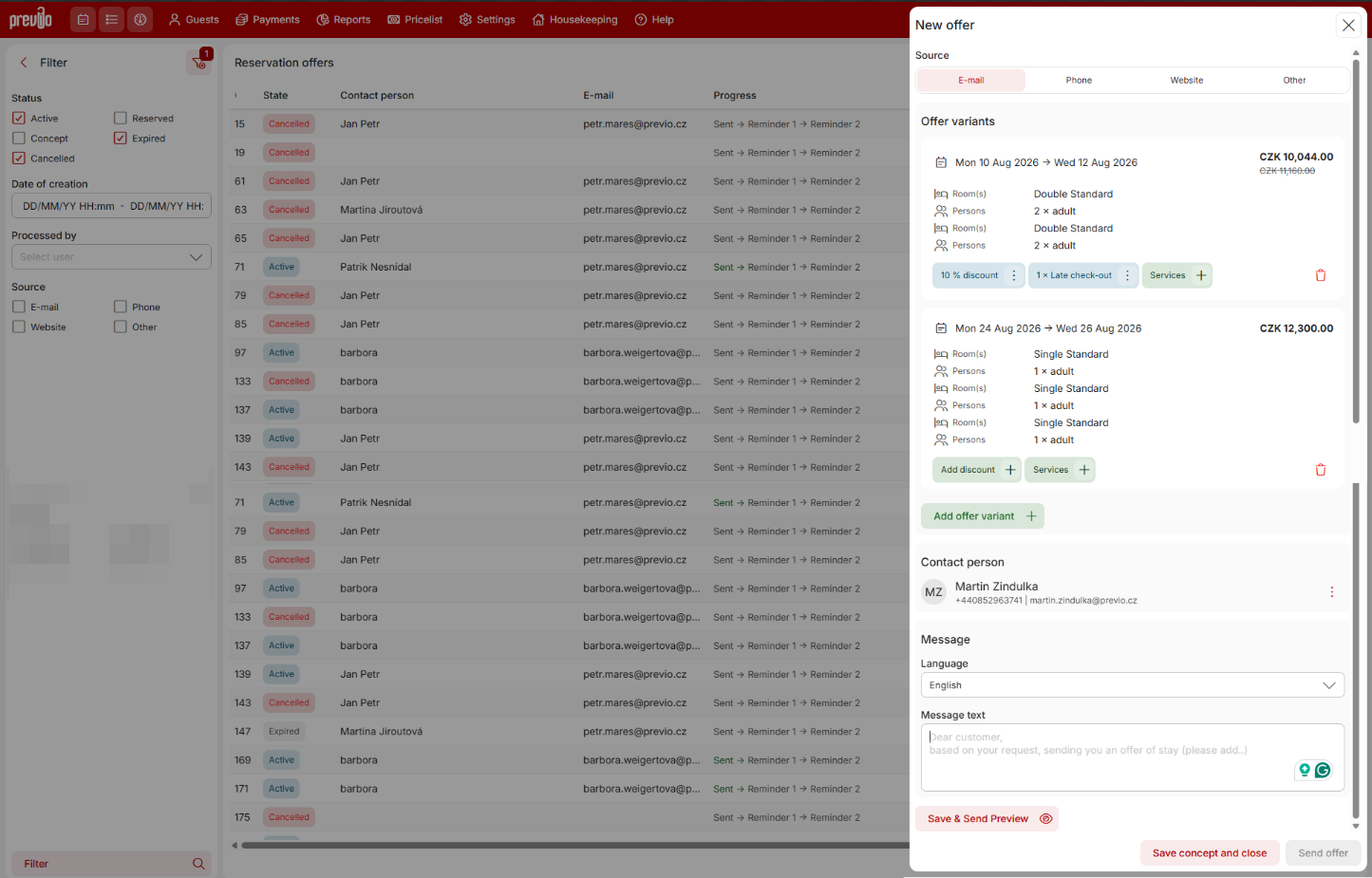
- Source of Inquiry—indicates where the inquiry for the offer came from; this is used solely for filtering offers.
- Contact Person—the person to whom the completed offer will be emailed (and to whom any reminders to finalize the offer will be sent)
- Language and email/offer text — since you know the recipient, you need to set the language in which communication will take place and attach a cover message to the offer. You can use the default text (or adjust the default in Offers settings) or adjust it specifically for created offer before sending.
The most important part of the settings is “Offer variants,” located roughly in the middle of the settings.
- You can offer one variant, or you can offer multiple ones – that´s up to you completely. A guest might request a specific date for 10 people, or they might request, for example, a price offers for all weekends in May for 10 people.
Offer variants can therefore differ in both dates and room configurations, and the recipient can then compare the offers and choose the best one (see the next section). - For a specific date, you always select the specific rooms and the number of people per room, and the price is then automatically calculated.
- After saving a variant, you’ll see a brief overview of it in the list, and you can add an additional discount (compared to the rate plan price) in the form of a percentage, an absolute discount, or a discount coupon.
- For each variant, you can also configure additional services that are included in the offer. Their price (set in the Prices / Services module) will then be reflected in the total price of the offer.
Once you’re satisfied with the offer, you have several options:
- Send the offer to the contact person’s email
- Save the offer as a draft and return to the list of offers (you can send the offer later)
- Save the offer as a draft and send a preview to your own email for review
After sending the offer
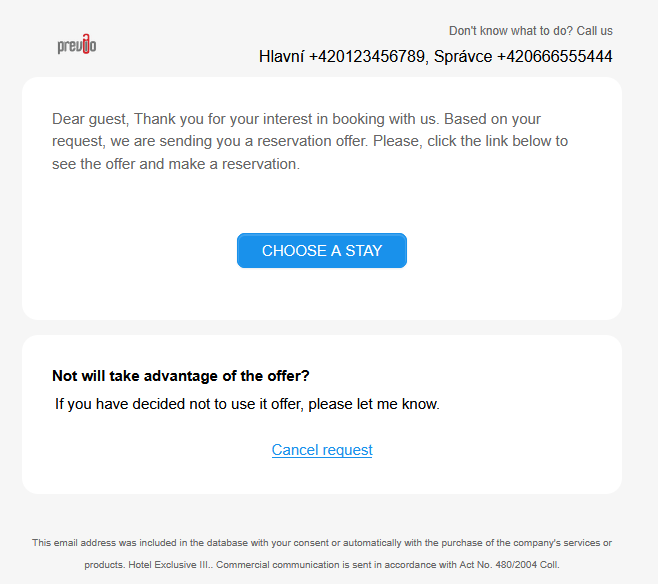
The recipient of the offer will receive the following email (text can be adjusted as mentioned previously), in which they can access the web interface to view and manage the offer and, if necessary, cancel it (which changes the offer’s status to “canceled”).
After clicking through to the offer, recipients are shown basic information about the accommodation facility (description, photo gallery, map), followed by the available offer options. For each option, individual rooms, dates, additional services, prices, etc., are listed.
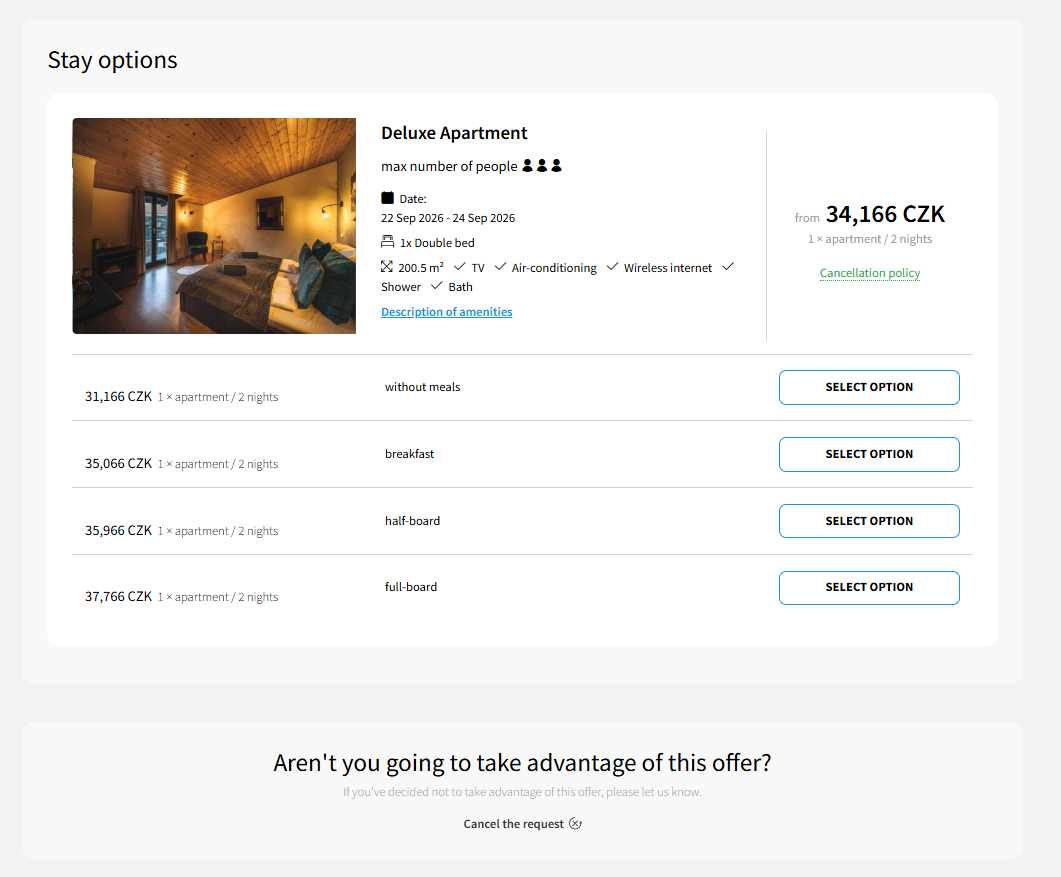
After selecting a specific option, a confirmation window appears, and the user is then redirected to the next page to select a payment method (based on the payment plan settings for the specific pricing plan). At the same time, a reservation based on the selected option is created in Previo and awaits payment. The reservation is listed under the “Offers” partner, and the offer itself automatically changes to the “reserved” status.
It is important to note that the availability of rooms included in your offers may change between the time the offer is created and the time it is confirmed. Once opened, the offer always reflects current room availability, so it is possible that some rooms—and thus entire offer options—may no longer be available.
Another important factor is the offer’s validity and expiration. A submitted offer remains active (i.e., bookable) as long as at least one of the offered options is still available for booking. For example, an offer for August weekends for 10 people will still be active even in the middle of the month, but only bookable dates for the second half of August will be displayed.
Overview of Offers and Additional Features
The tabular overview of offers provides standard filtering options based on offer status, creation date, and so on.
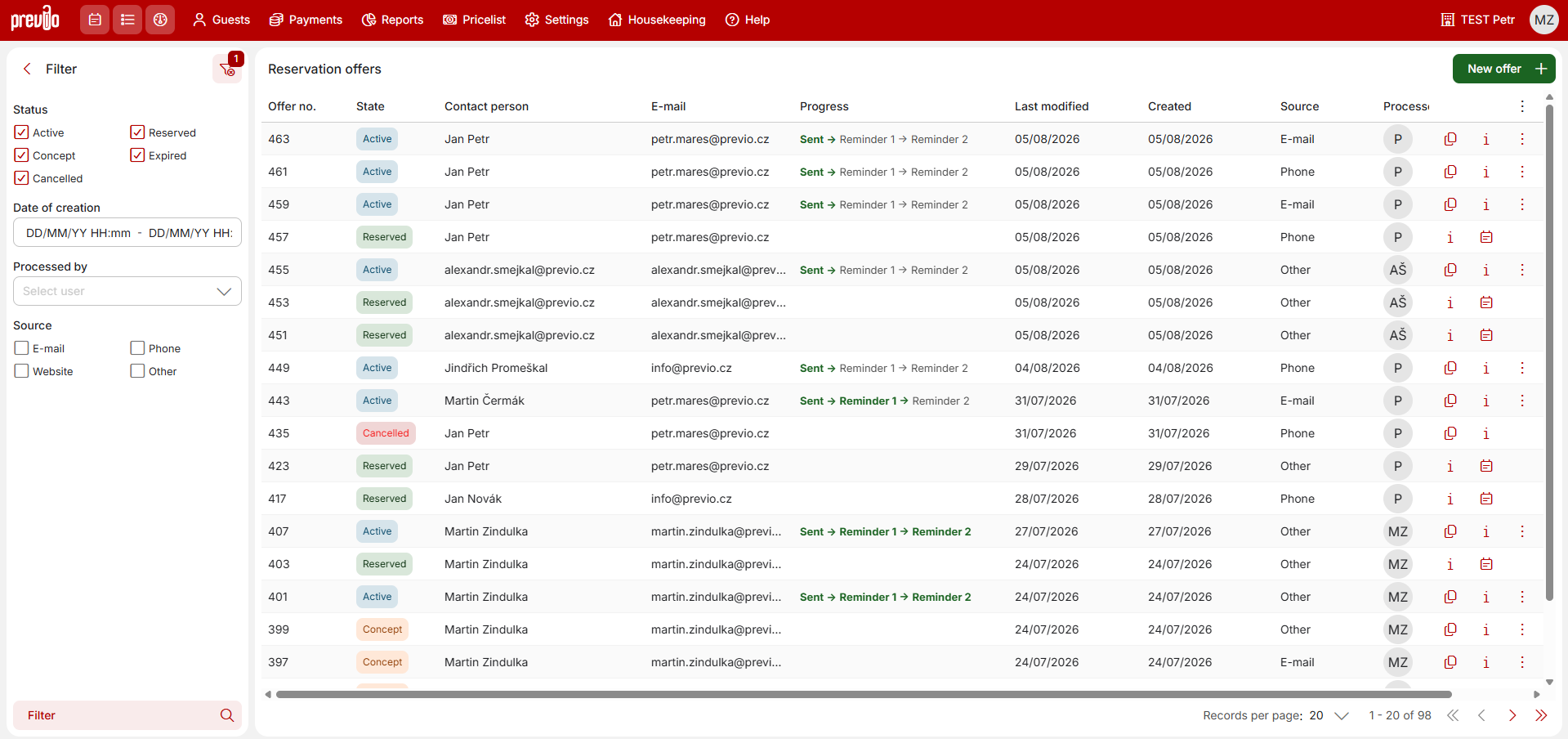
For individual offers, there are additional features you can use.
You’ll find them under quick action icons and the remaining ones under the three-dot icon at the end of the row for a specific offer. Options may vary based on the offer status.
- Create a Copy – When creating similar offers, you can copy an existing one and then simply adjust specific parameters of the offer
- View detail of the Offer
- Send a Reminder – If the recipient has not confirmed the offer, you can send an email reminder (only for active offers)
- Cancel offer – You can deactivate an offer at any time (only for active offers)