


Automatic tasks
The creation of tasks and their assignment to specific individuals can also be fully automated using Automatic tasks module.
Imagine that a client orders a specific service through during the booking process or using the Alfred during their stay, which requires some preparation. This module ensures that a corresponding task is created and assigned to a specific person, and based on the date and nature of the ordered service, it automatically sets the start and end dates for the task to be completed so that the ordered service can run smoothly.
In Previo, you can set up two different types of automatic tasks:
- Tasks in reservations
- Recurring tasks (outside of reservations)

Tasks in reservations
The automatic creation of tasks in reservations can be based on several different parameters:
- Service order
- Number of guests in the reservation
- Length of stay
- Room type booked
- Stay package order
- Guest label
For each type of automatic task, you then select a trigger (which service must be booked, what type of room the guest must be accommodated in, etc.) and set who is responsible for completing the task, when it should be started, and by when it must be completed. It is therefore necessary to set the user role that will handle the task, as well as how far in advance—e.g., before the start of the reservation—the task should be opened for processing, and how far in advance—again, e.g., before the start of the reservation—the task should be completed.
After that, everything will be fully automatic. That is, if the “child bed” service is added to the reservation account (manually, when booking a stay and service via R+ or via the Alfred app), a new task will be created for the corresponding user and assigned to the specific reservation.
In reality, this could be, for example, an order for a cot (which you have defined in Services and of which there is a limited number). After ordering a cot, a specific person from the reception or housekeeping staff must go to the storage room, clean the cot, take it to the specific room, and assemble it there.
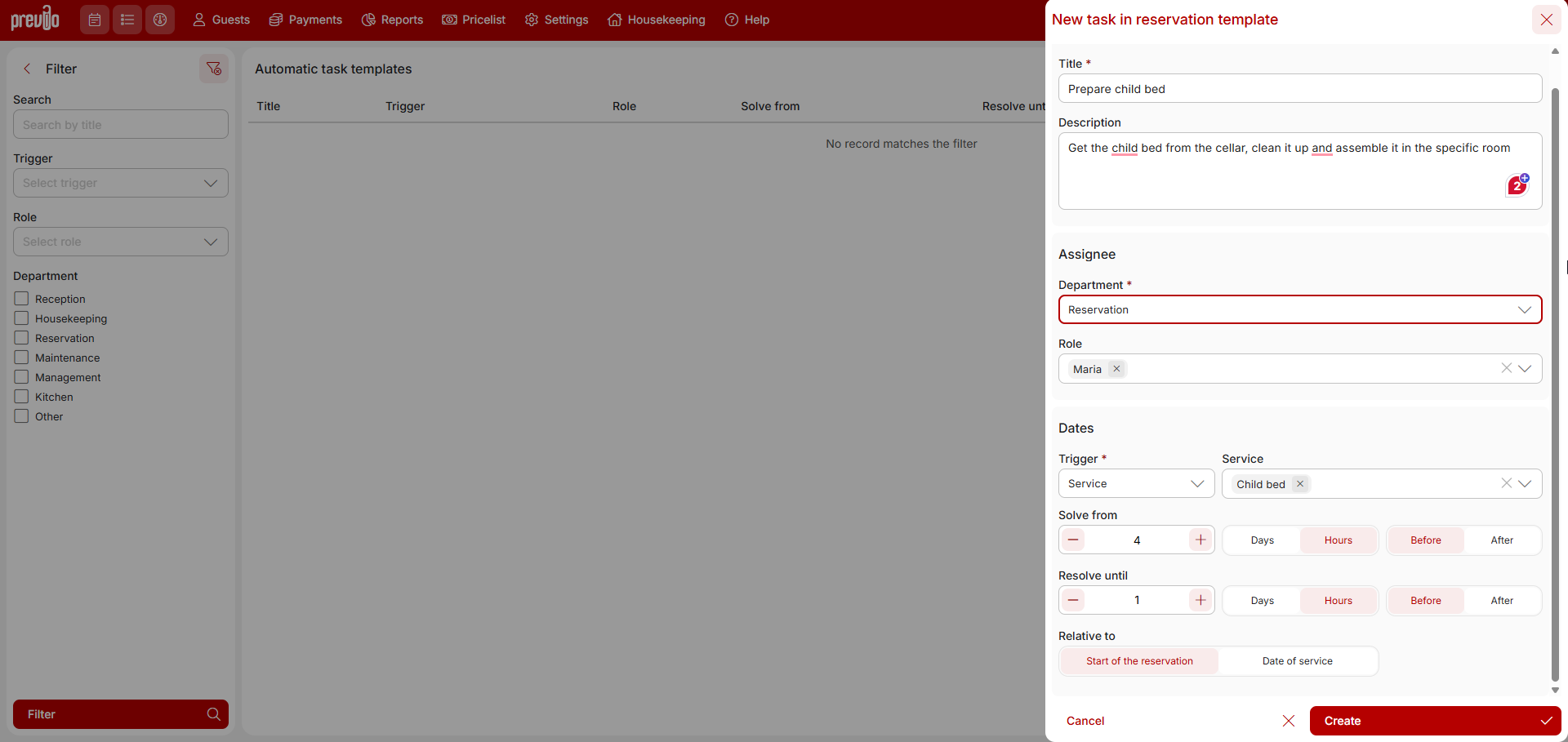
In the automatic tasks module, create a new automatic task to build a child bed and set when this task should be open for solving and when it should be solved. You can choose a certain number of hours or days before the start of the reservation/service, or after the start (specifically, in the case of a cot, you will rather use the option before the start of the reservation). Along with this setting, select to which user role (which can be assigned to multiple users) this task will be automatically assigned.
After the automatic task is created its listed with the other (also non-automatic tasks) in Housekeeping /Tasks module.The display of the task in the notifications will then depend on the settings of the automatic task template, namely from when the task should be solved and by when it should be solved.
Recurring Tasks
Recurring tasks are not related to reservations, but you can use them, for example, for routine activities performed at the front desk or as part of cleaning the hotel’s common areas.
The setup itself is partly the same (task name, description, department assignment, and user role), but in the scheduling section, you set the interval at which the task should be created regularly. There are several options:
- Daily task—this could be, for example, cleaning the reception area before the start of the day. For this type of recurring task, you set the exact time when the task should be opened for processing each day and the exact time by which it should be closed.
- Weekly task—e.g., restocking the self-service bar every Monday. The opening and closing of the task are defined by a specific day of the week.
- Monthly task—e.g., generating a list of documents for the previous month and sending it to the accountant. The task will open on the first day of the month, and the user has until the third day to close it (see below).
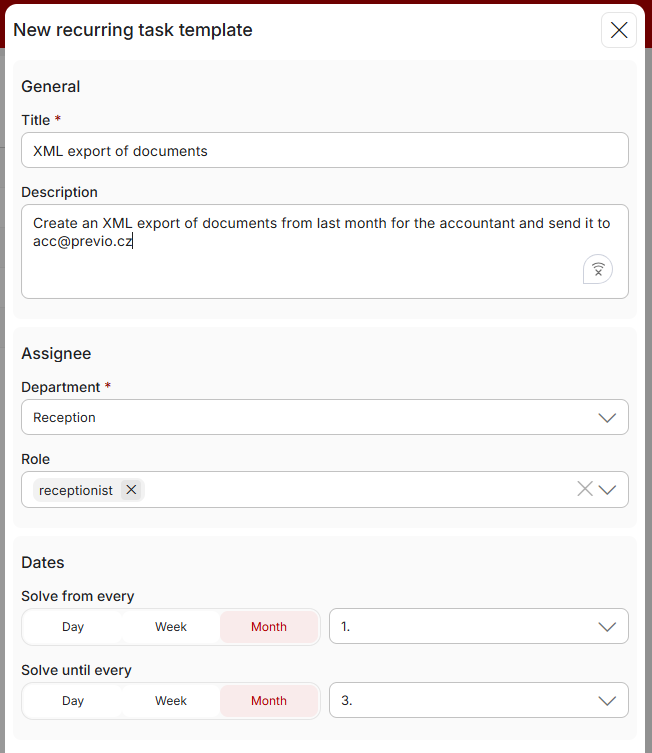
Once you save a recurring task, the next task in the sequence will be created immediately (e.g., as shown in the image above—the June task, which starts on June 1 and is due by June 3). The recurring task for July is not created at this point; it will be created only when the previous task becomes active. In our case, a new recurring task for July 1 would be created on June 1, with a due date of July 3, and so on.
For monthly tasks, we also take into account the varying lengths of months. If you have set a task to be created on the 29th, 30th, or 31st and the month in question does not have that many days, we will automatically create the task on the last day of that month.
The interval between creation and completion works similarly. For example, if you set the dates to the 27th–31st and the month has only 30 days, we will automatically adjust the task dates to the 26th–30th, thereby maintaining the same time interval between creation and completion.
When creating weekly and monthly tasks, the task always opens at 12:00 a.m. on the given day, and the closing time is always set to 11:59 p.m. on the day it is supposed to be solved. This means that if, for example, you need a weekly task to be 100% complete by Wednesday morning, you should set the “solve until” date to Tuesday (11:59 p.m.).