


Basic information P2
The reservation calendar (hereinafter referred to as “calendar”) is the module you will use most often when working in Previo.
The calendar provides a clear graphical overview of all your rooms and reservations. It is updated automatically, i.e. when you receive a new reservation, it is automatically loaded and displayed in the sheet (the same applies to cancellations).
You can create new reservations, edit existing ones, enter guest information, and much more directly from the calendar.
Navigation, scrolling through the calendar, and searching
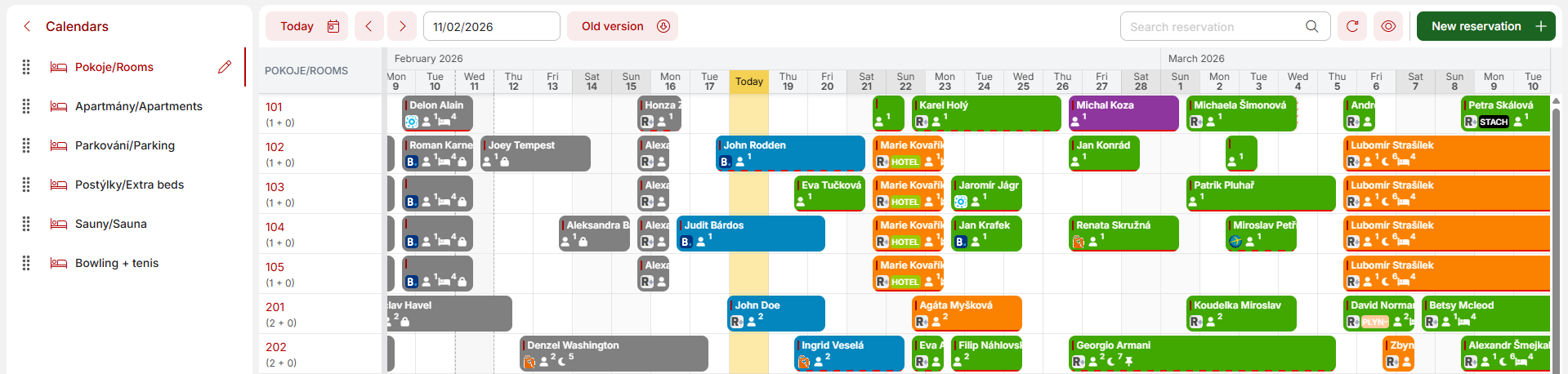
The main part of the reservation calendar is defined by a horizontal timeline divided into individual days and a vertical axis that shows us the individual rooms.
There are three ways to navigate the chart.
- Side and bottom scroll bars
- Date selection, icons for moving by month, switching to the current day
- Full-text search
Using full-text search (as the name suggests), you can easily find a specific reservation, e.g., by guest name, company name, reservation number, etc.
Displaying the calendar by reservation status/balance
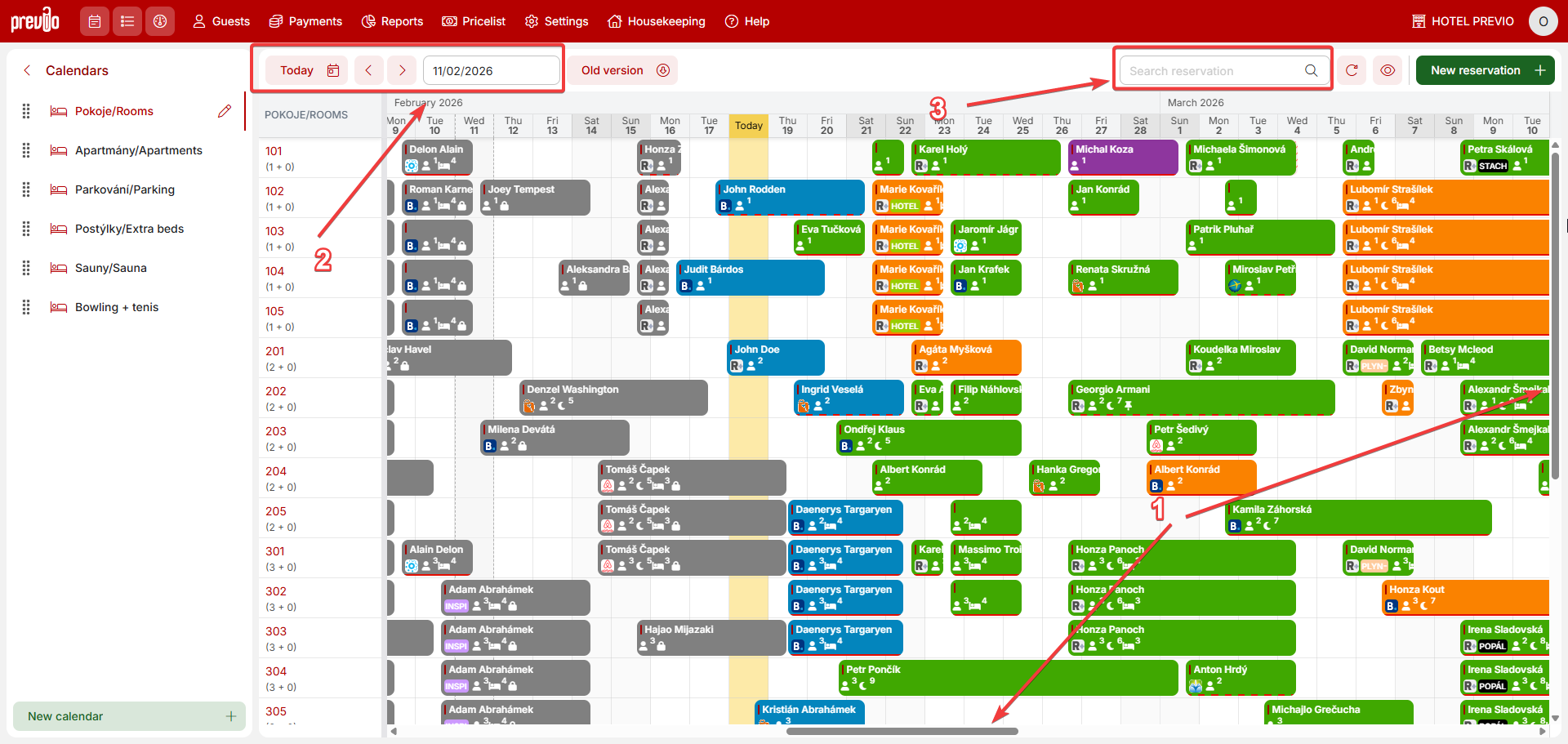
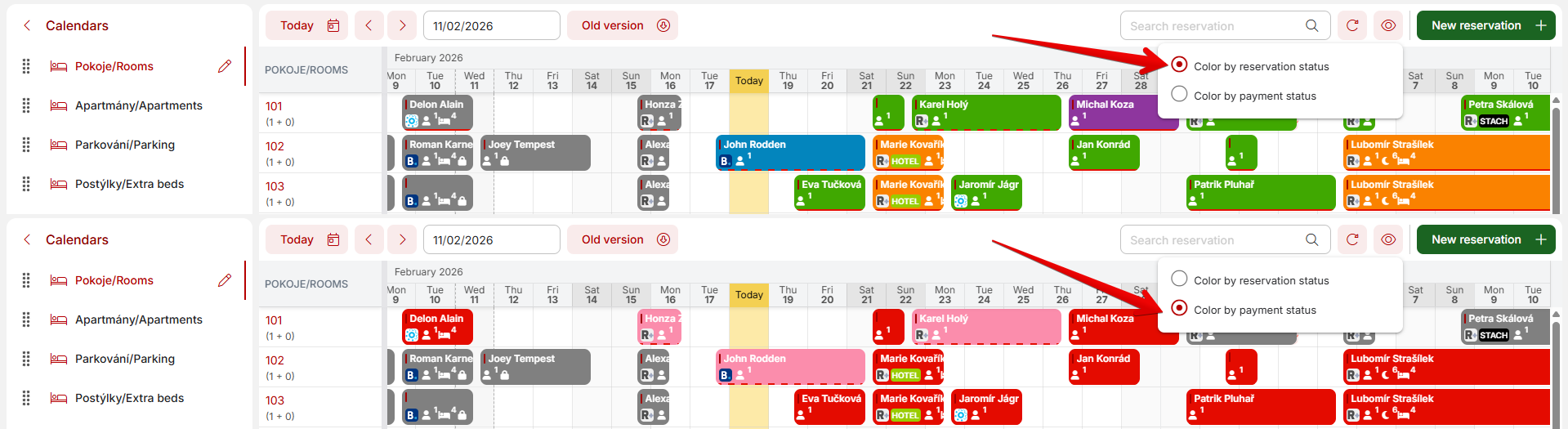
In the default view, the sheet is displayed (in color) according to reservation status, with the payment status of reservations indicated by a red line at the bottom of each reservation.
Alternatively, it is possible to display the chart inversely, i.e. by color according to the payment status of individual reservations, with the bottom background color indicating the status of the reservation.
You can switch between the two statuses using the button to the right above the chart.
Dashboard
Dashboard can be very useful for you. It gives you quick information about:
- Floating reservations – see more information in manual.
- Tasks in reservations – all scheduled tasks in reservation which are due today, tomorrow, day after tomorrow or already past deadline. See more here
- New online reservations – all new reservation that came through online distribution channels (Reservation+, Expedia, Hotel.cz, etc)
- Expiring options – reservations in option status. The expiration of option is set for todays date (client was supposed to pay deposit so you need to check if he did and confirm or cancel the reservation)
- Waiting list
- Departures – all reservations that end today and are not in Checked out status
- Arrivals – all reservations that start today and are not in Checked in status
When you click on the calendar icon of any reservation in dashboard, calendar will center this reservation and mark it with yellow color (except waiting list reservations which are not being displayed in the calendar). Double click on the reservation row on will open detail of the reservation
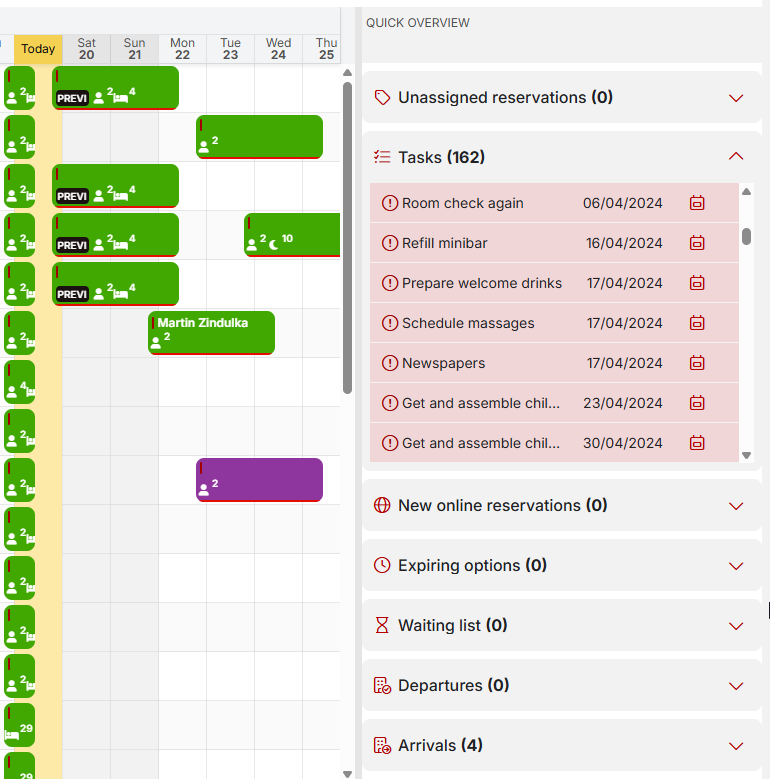
Dashboard can be easily hidden if you do not want to use it, simply just drag it and drop it on the right side of the screen.
Available rooms
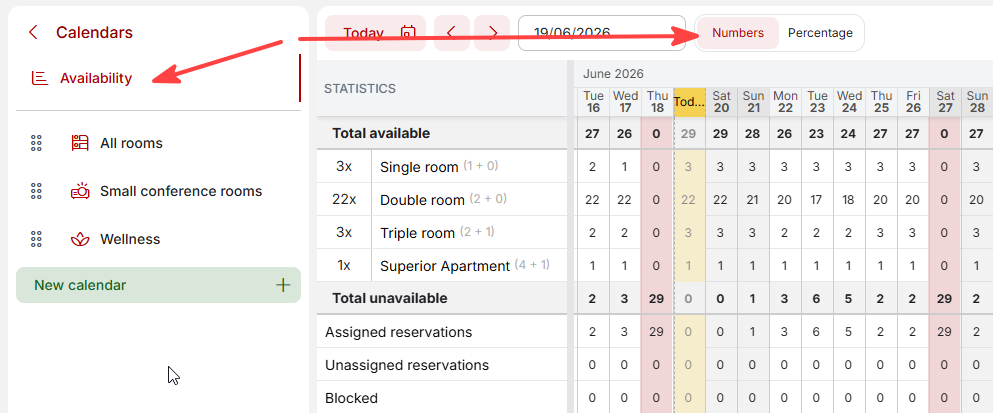
You will find another useful thing in the top left side of your calendar which is called Availability. This tab gives you quick overview of your available rooms and occupancy. Each row here represents room type not certain room.
There is nothing easier than to quickly check your availability when someone is booking via phone. You do not have to go to the calendar and scroll through reservations to see if you still have one triple room free for certain date.
Areas highlighted in red mean that the room type is completely sold out / occupied on a certain date.
You can also switch between the absolute value of available rooms and the percentage view.
Housekeeping, reported defects and tasks
Side panel of calendar with room names also shows you housekeeping status of rooms, reported defects and possible unresolved tasks.
Housekeeping status can have 4 different statuses:
- Cleaned – no icon
- Untidy – red icon
- Check-up cleaning – yellow eye icon
- Inspection– blue icon
- More detailed information about housekeeping can be found here.
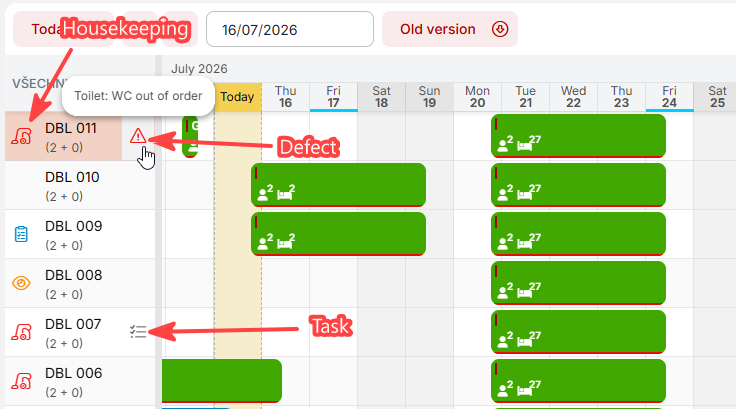
Defects are displayed as a red exclamation mark icon and tasks as a grey checklist icon.
If you hover the mouse over the defect or task, you will see a basic description of the issue, and you can click through to the Defects or Tasks module.