


Payment prescriptions
Advance payment prescription can be also generated from reservation folio and directly send to guest email. Advance can be requested via online payment or bank transfer. Third option is to collect card details from client as a reservation guarantee.
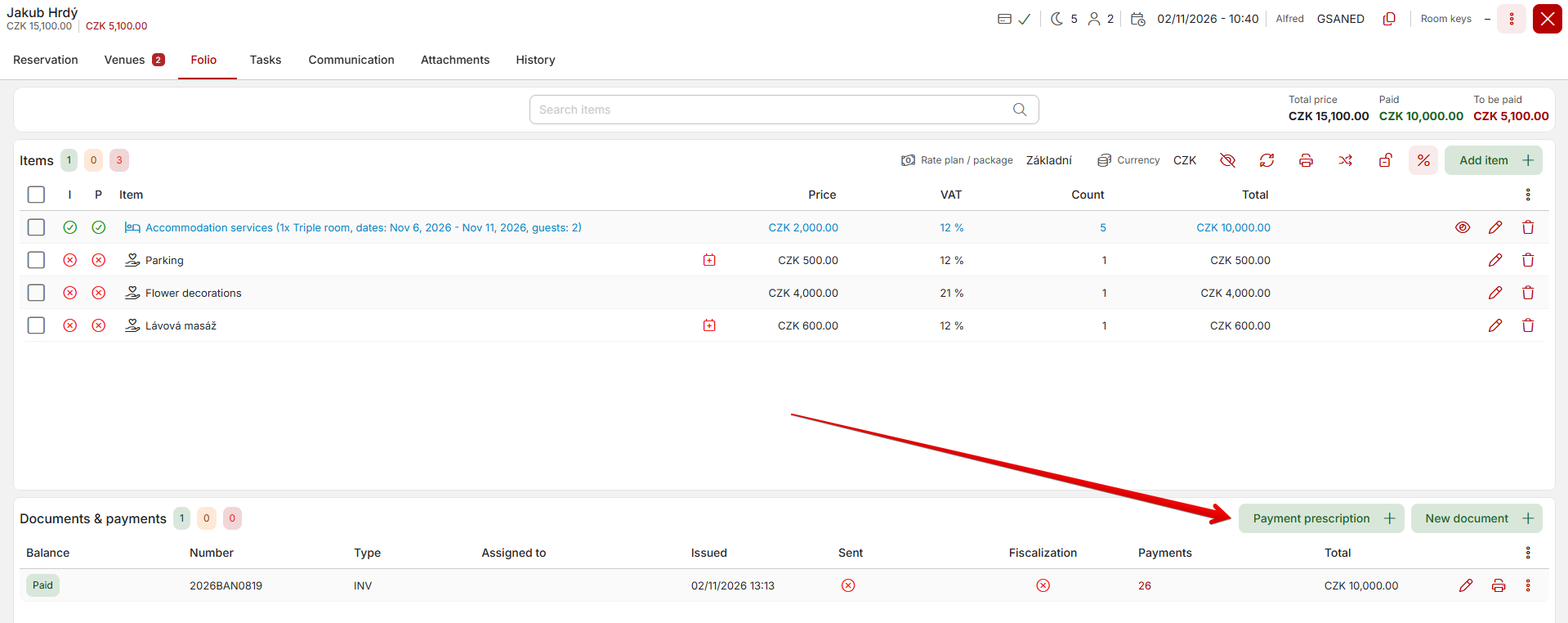
You can generate a payment prescription by clicking the “Payment prescription+” button in the reservation folio. If the button is green, it means there is currently no active payment prescription for the reservation, and a window will open for you to create a new one. If there was already a payment prescription in the reservation and it has been completed or has expired, you’ll first see a table with an overview of all payment prescriptions for that reservation, from which you can create a new one.
The payment prescription details look like this:
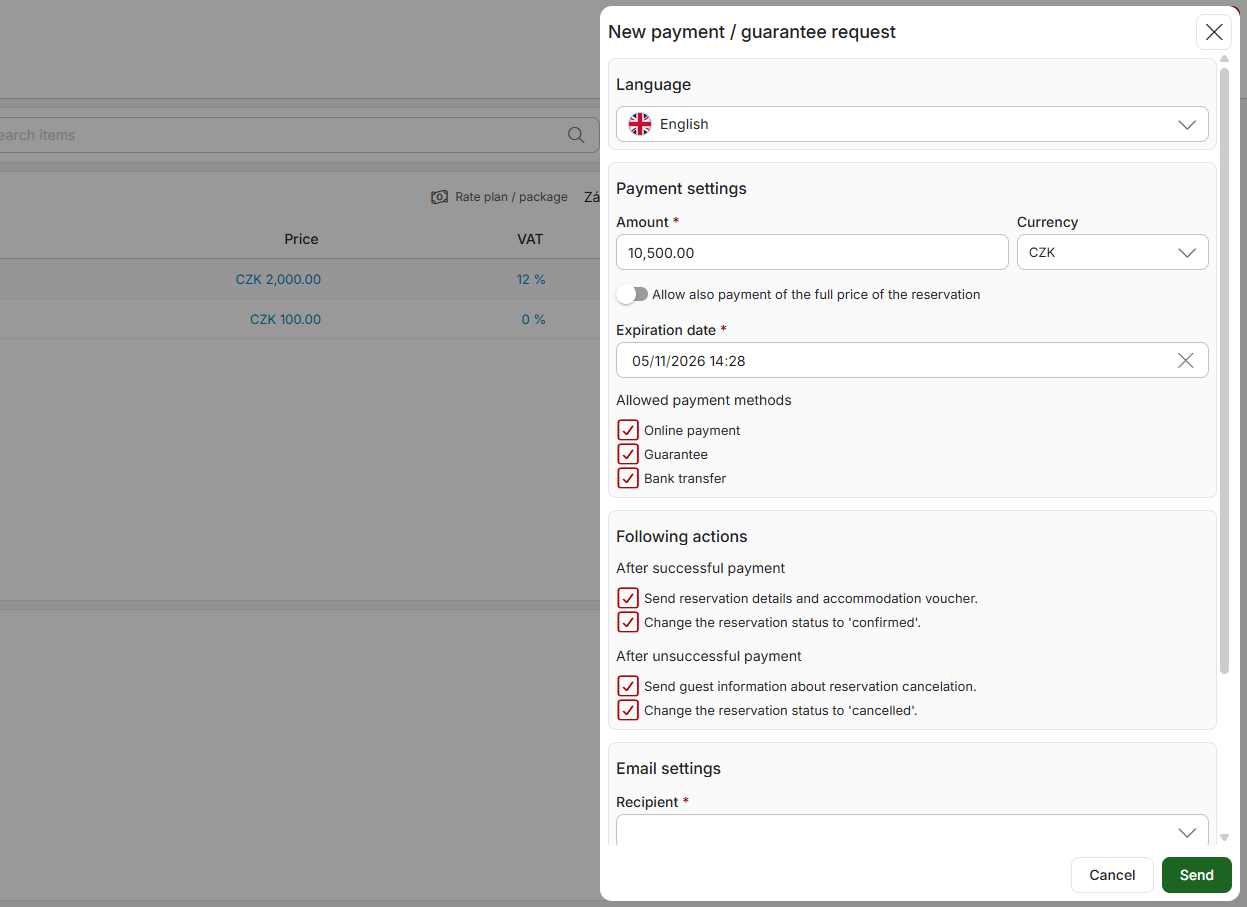
- Language – sets specific language version of the sent email (will adjust the text at the bottom of the floating panel)
- Price and currency – price and currency will be automatically calculated from all not yet paid items in room account. Price can be adjusted manually in case you ask only partial advance.
- Allow also payment of the full price of the reservation (only for payment gateway option) – in case you require only partial advance, you can also offer your guests optional payment of the full price of the reservation. Using this option they wont have to handle any further advance payments of remaining payments upon arrival.
- Expiration date – is preset to date and time when the prescription is created + 24 hours. But can be changed according to your preferences.
- Allowed payment methods – select which payment methods will be available for the advance payment. Altogether there can be three different payment types – bank transfer, payment card guarantee and payment card (online payment). At least one of the options must be always selected. If you select more than one guest can choose from offered options.
- After successful / unsuccessful payment – additional setting for what should happen with reservation after un/successful payment / guarantee.
- Recipient – will be prefilled from reservation detail or you can set it manually.
- Email text – predefined text of the payment prescription email which varies based on the selected payment methods. +Automatically generated chart with information about reservation and payment will be automatically placed bellow the automatic texts.
Click on the Save button to generate and send the payment prescription to selected email.
Loading items into a payment prescription
As mentioned above, all unbilled and unpaid items from folio are automatically loaded into payment prescription. If a reservation has been paid in full, you will not be able to create a new payment prescription (because there is nothing to be requested from the client, unless you add more unpaid items to folio).
If you want a client to pay only specific items from the folio, you can use the checkboxes on the folio page to select which items you want them to pay; when you create the prescription, only the selected items will be included.
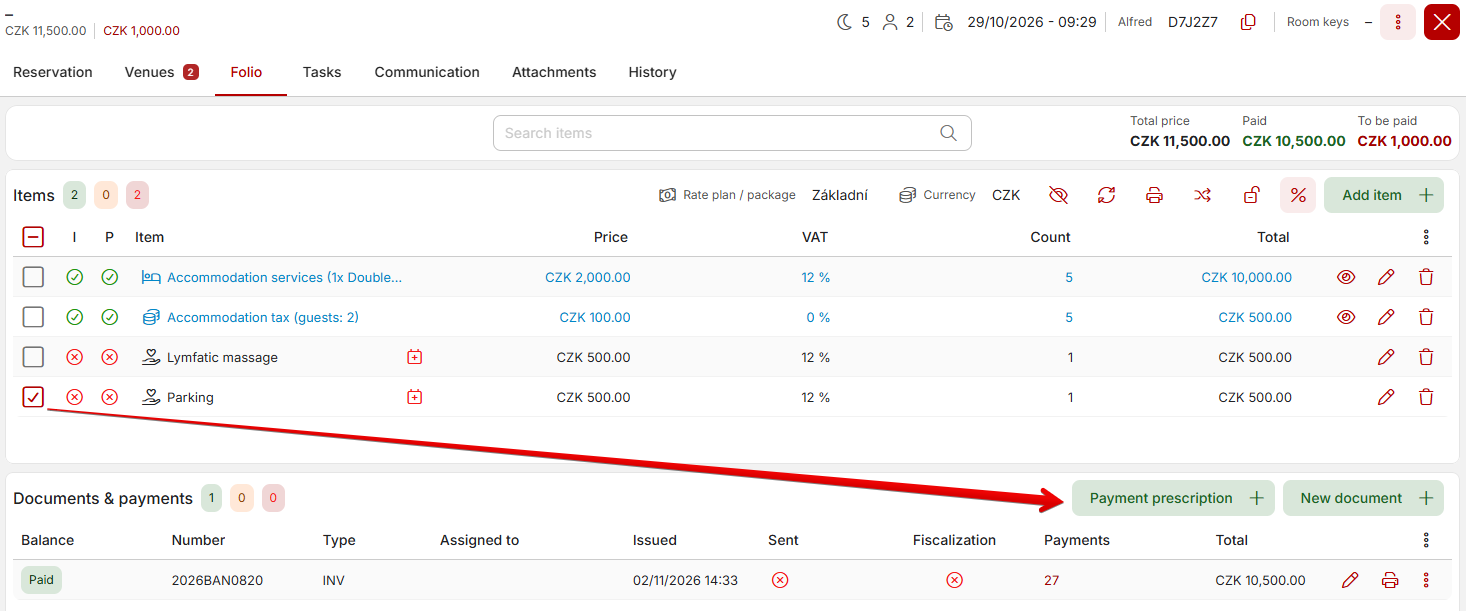
This way, for example, you can send several payment requests from a single reservation to different guests at different email addresses, asking them to pay for their part of the reservation or the services they ordered separately.
Unlike the older version of Previo, this version allows you to have multiple active payment requests.
Email with advance payment prescription

Guest clicks on the payment / guarantee button which redirects him to stanadlone site with list of all possible payment methods.

After selection of payment method the process differes a bit:
Payment card (online payment)

Guest is redirected to online payment to finish the payment. After successful payment accounting document is automatically issued.
Payment card guarantee

Guest is redirected to safe card guarantee form and is instructed to fill in the card details. Collected card details are then available in the reservation detail.
TIP: In case you received invalid payment card details from client you can easily ask for a new valid ones. All you need to do is to delete original card from the reservation and create a new “payment prescription” where you select/allow only payment card guarantee option (+ you could probably also adjust the email text to inform the guest that the originally provided card was not valid).
Bank transfer

Selecting bank transfer will display following payment prescription and at the same time accounting document is issued in reservation account.
TIP: Do not forget to fill in IBAN and SWIFT in Settings / Hotel / General / Bank account in order to display the QR code in the prescription.
Expiration of payment prescription
If the prescription is not paid / guaranteed on time it might get to the expiration point.
Guest receives another email with information about payment prescription expiration and therefore also about cancellation of his/her reservation (see bellow).
Reservation can be also automatically switched to cancelled status when the prescriptions expires (needs to be set when sending the payment request).
