


How to use stock items in folio
You can manage inventory items directly in the Stock transactions module without linking them to a specific reservation. However, if you have guests staying at your property who, for example, purchase snacks or other small items at the front desk, you can charge these individual items directly to their reservation account, which they will pay in full upon checkout.
If guests paid in advance, for example, you can still add additional items from inventory to their account and issue a separate document for them within the reservation. The reservation will then include both the document for the accommodation and a second document (e.g., sales receipt) for purchased beverages and other small items.

In the hotel account for a specific reservation, click the button to add a new item to the folio. After clicking, a pop-up window for bulk adding items will open, and a suggestion list of predefined items will appear. This list will also include your preset stock items.” You can easily identify them by the current stock level listed in parentheses next to them.
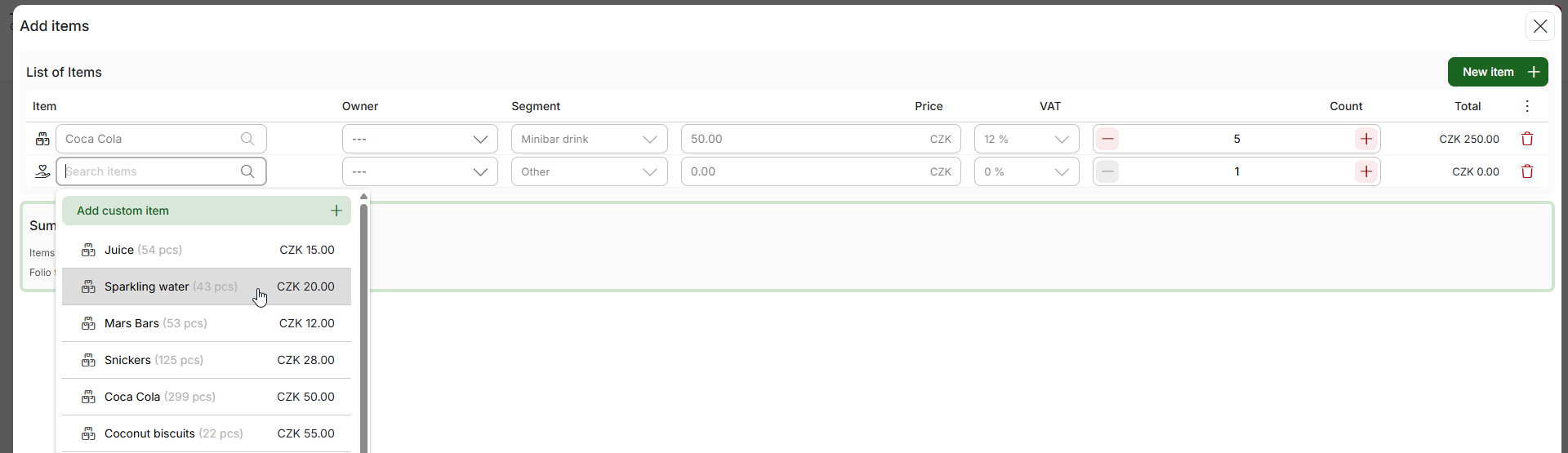
This way, you can select specific stock items to add to the folio. After adding them to the table, you can still adjust the quantities sold and then confirm the adding to the reservation folio.
An important change from the older version of the folio is that after confirming the window for adding items, all items are immediately saved to the folio and moved out of stock. In the old version, it was necessary to save the entire reservation first.
Further actions with inventory items in the account
Inventory items added to the account can also be further edited:
- Deleting an item – the quantity of that item will be automatically restocked
- Increasing the quantity of items – additional items will be removed from stock
- Decreasing the quantity of items – items will be restocked