Venue reservations
In Previo, you can also manage other bookable venues. These may include venues that are booked for entire days, as well as venues with reservations by the hour or minute—such as parking spots, e-bike rentals, conference rooms, massages, or wellness services.
This way, you can track everything related to the occupancy of these venues, and at the same time, you can allow guests to book services related to these venues online—either separately without an accommodation reservation (come play bowling with us) or as an upsell to a standard reservation (add a massage to your stay).
Basic setup
To work with additional venues, you need to configure several related settings:
- Create these additional venues in the Rooms module
- Create a reservation calendar where you’ll place these venues and track reservations
- Link predefined services to specific venues (and enable online booking if applicable)
You can find a basic guide to each setting here.
Types of venue reservations
As mentioned earlier, room reservations are divided into two main categories:
- Full-day reservations—these rooms can be placed in the same reservation grid as standard rooms (which are also reserved by the day)—i.e., you can include parking or cribs as part of the reservation calendar, or you can create a separate calendar for a specific item, such as parking, where you’ll track only those reservations.
- Reservations by the hour/minute—it is necessary to create a separate hourly reservation calendar.
Both types of venue reservations work very similarly, and these reservations can be combined and linked to accommodation reservations (a guest books a massage for a specific time during their stay/guests book parking for the entire duration of their stay).
Creating a reservation in the calendar
To create a reservation on the calendar, drag the reservation to a specific date or click the “New Reservation” button in the top right corner and select a date.
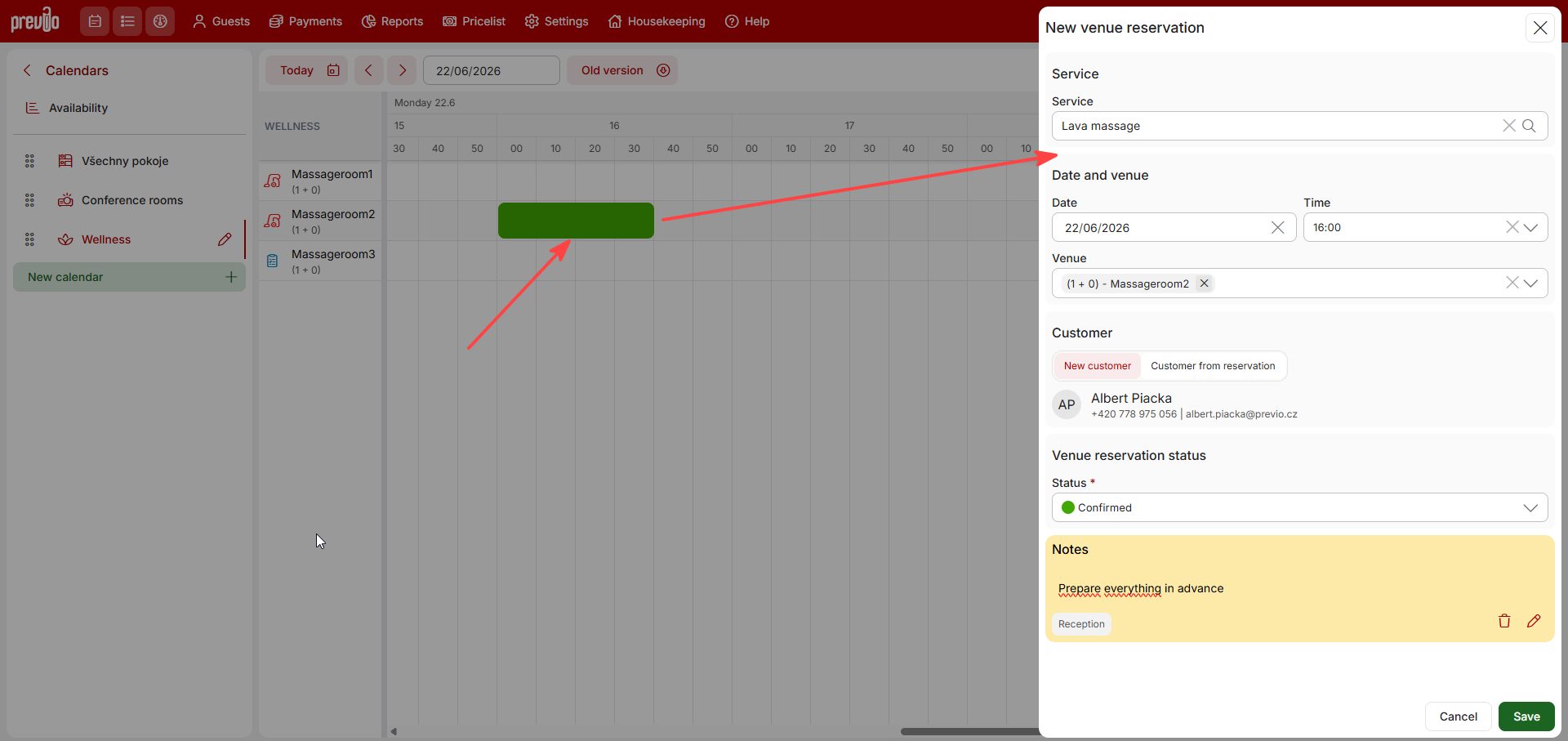
The rest of the process is very simple:
- Under “Services,” you’ll see a list of all services linked to the bookable venue in question.
- The date is pre-filled based on the calendar, and the defined services have a fixed duration, so you only need to select the start time of the reservation. The time selection takes into account other reservations for the venue, the length of time slots for that venue, and the opening hours.
- The venue is also pre-filled based on the schedule (or selected manually if you clicked the button to create a new reservation).
- In the Customer section, you choose whether this is a standalone venue reservation (New Customer) or whether you want to link the reservation to an existing one (Customer from Reservation). For a “Customer from a Reservation,” a drop-down menu will open where you can search for the specific reservation (or guest) to which you want to link the new venue reservation.
- The reservation status and notes require no further explanation, and you can save the reservation.
After saving
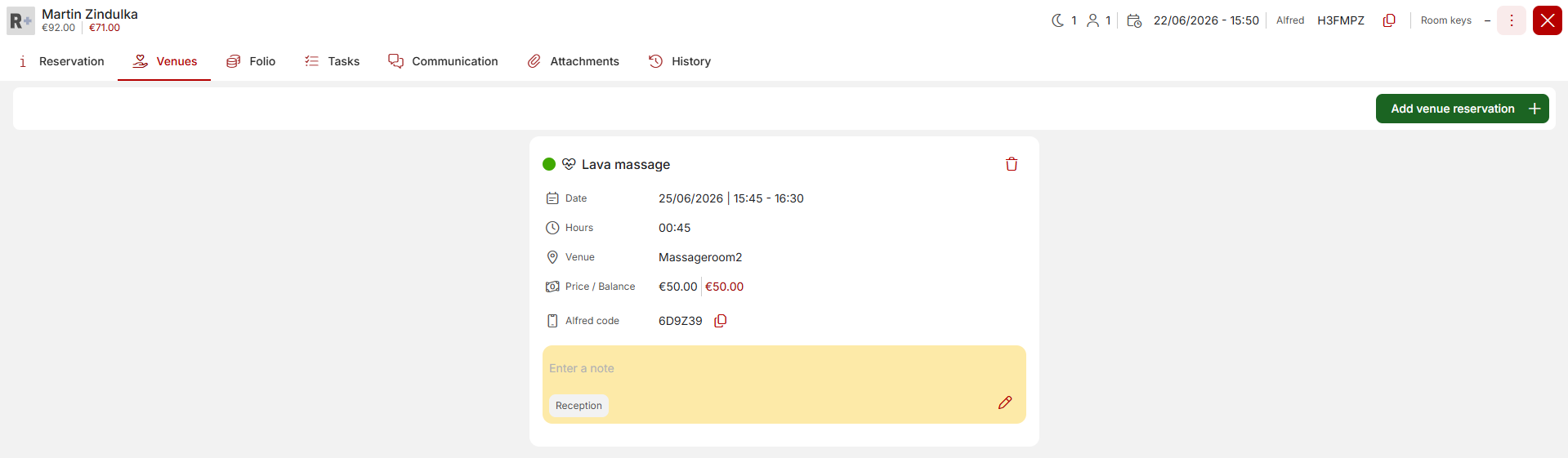
The details of the newly created reservation will open automatically. Here is an important change compared to the old version. All venue reservations are recorded in a separate “Venues” tab so they don’t get mixed in with standard room reservations. If the venue reservation is created as a standalone reservation, it will look similar to the image below.
If a venue reservation is created for an existing accommodation reservation (e.g., adding a massage), after saving, the main accommodation reservation details window will open, where a section with linked venues will be added to the reservation details, as shown below.
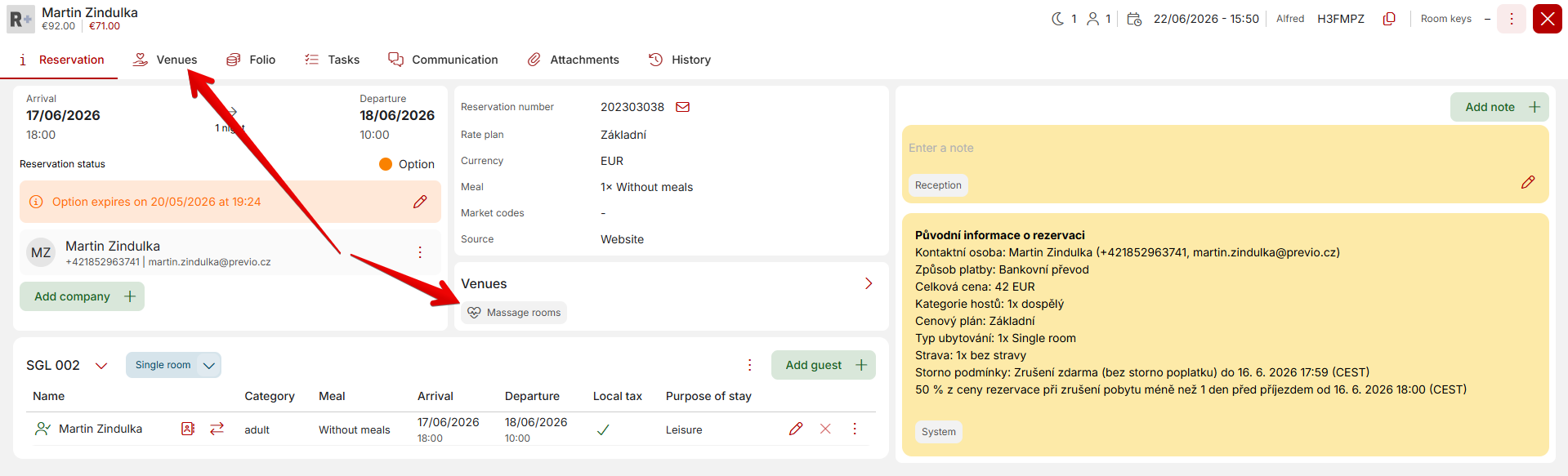
In both cases, the service price is automatically charged to the reservation account according to the current price list of the service.
In the “Venues” tab, you can then further manage individual reservations. You can change the reservation status by clicking on the colored status icon, edit notes, or add another reservation for a different venue.
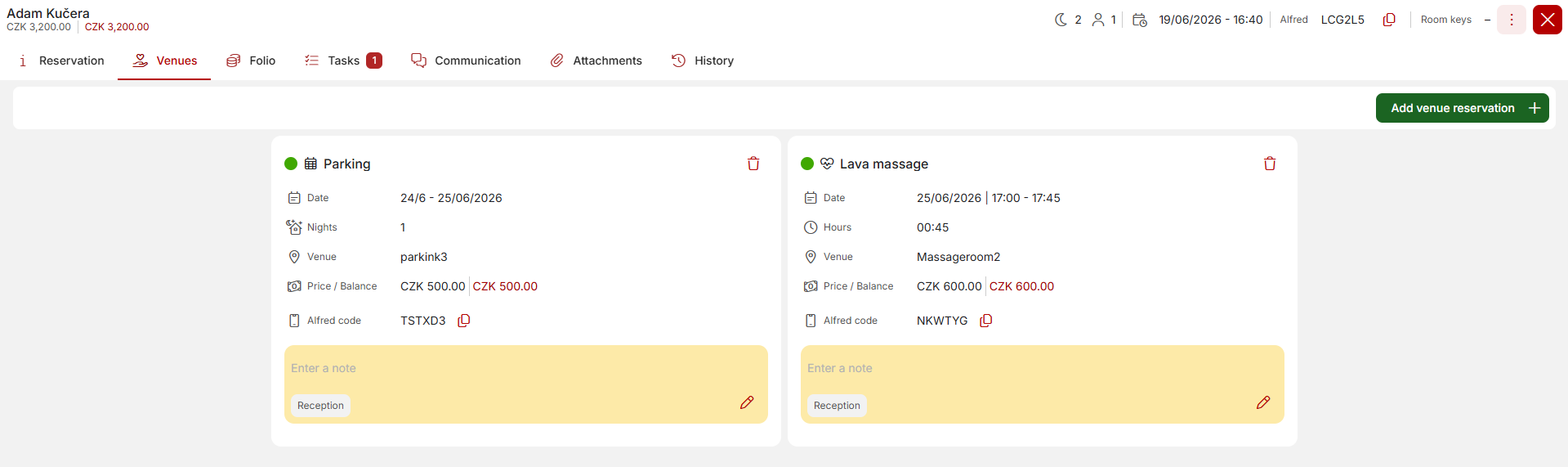
Creating a venue reservation directly from an accommodation reservation
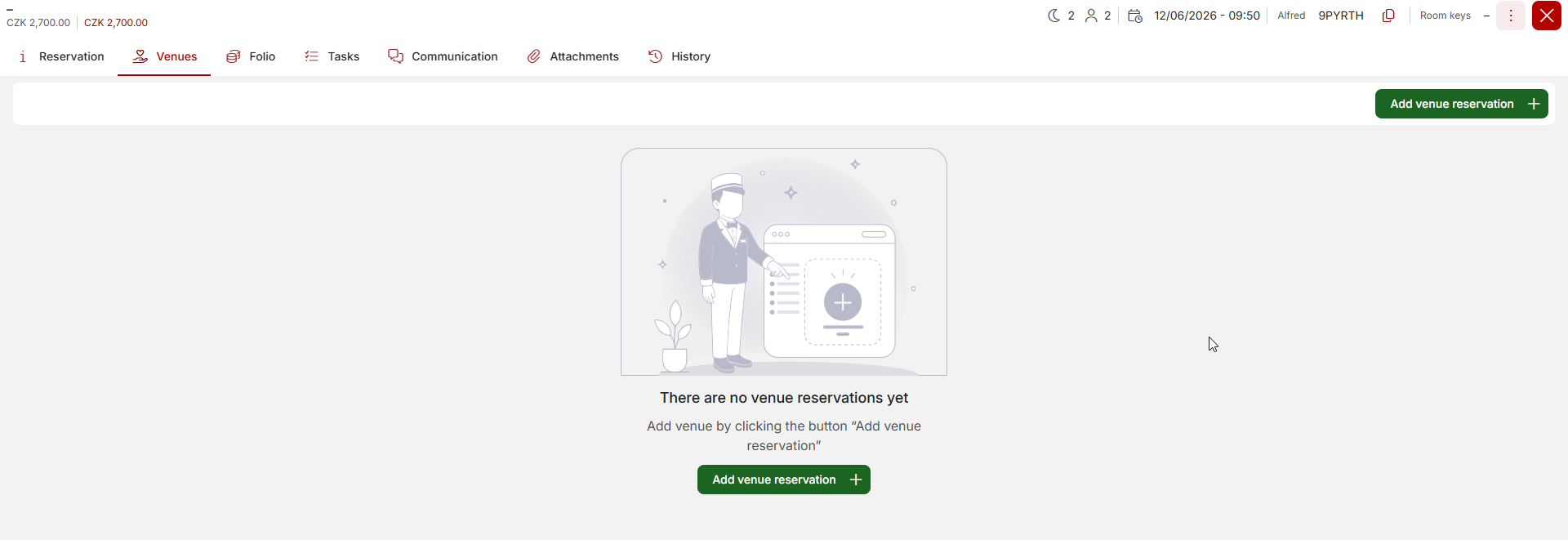
There is also an alternative way to add a service reservation linked to a venue directly from a specific reservation. Open the reservation details and go to the Venues tab. Here, click the button to add a venue. With this method, you do not need to search for the reservation using the suggester, and the venue reservation will be automatically assigned to the reservation from which you initiated the action.