


AI optimizer

The AI Optimizer feature will be particularly helpful in the following situations:
- Resolving ‘gaps in the reservation calendar’, where a reservation appears in the ‘floating’ section because, although you actually have space available for it, you first need to rearrange existing reservations to make room for it (reservations are scattered and a single room is not continuously available for the new reservation)
- Reorganising and rearranging reservations to create as much space as possible and align reservations into ‘blocks’ – ideally, also to create the longest possible contiguous block of bookable rooms.
The best way to illustrate this is with an example. In the reservation calendar, we have reservations scattered as shown, and we also have one floating reservation. All the rooms in the image below are of the same type.
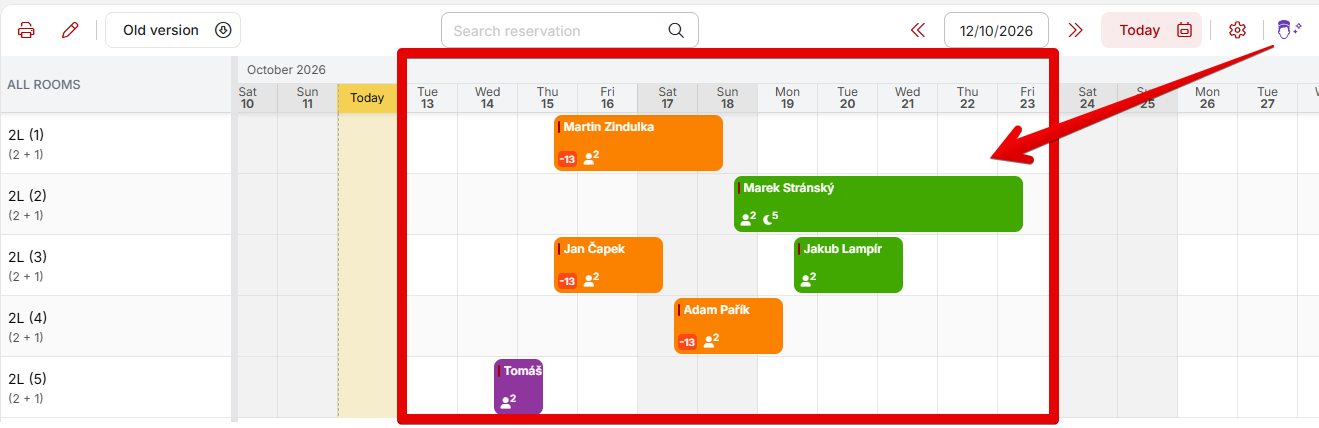
You can activate the function by clicking the ‘AI Optimizer’ button above the calendar, which will open additional settings.
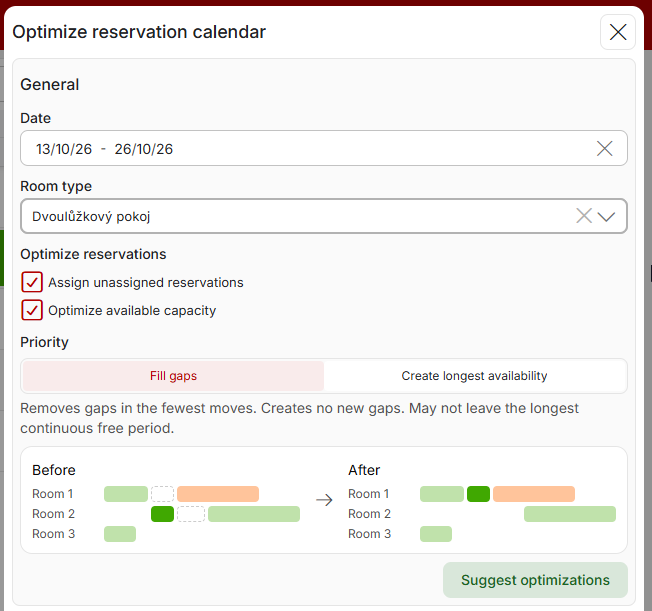
- Optimisation period – the reorganisation and placement of reservations will only take place within the selected period. Reservations will only be optimised if their check-in or check-out dates do not extend beyond the selected period. Optimisation is only possible for future dates; in other words, you cannot select a date earlier than tomorrow.
- Room type – the AI Optimizer always operates within a specific room type; for example, in the screenshot above, it reorganises all reservations into Double Rooms (i.e. reservations are never moved between different room types).
- Reservation optimisation (you can select one or more options)
- Allocation of floating reservations – placing floating reservations on a specific date
- Optimisation of available capacity – rearranging reservations into blocks and freeing up longer, contiguous bookable periods.
- Optimisation priority (setting the ‘intensity’ of reorganisation) – you can see the difference between the options in the graphical example below the settings selection.
- Fill gaps – a more moderate reorganisation option. The optimiser evaluates various options and then selects the most advantageous one based on the ratio of the length of the freed-up space to the number of reservations moved to other rooms.
- Create the longest availability – you give the optimiser free rein to create the longest continuous available, bookable period, regardless of how many resrvations it will have to move.
Let’s look, for example, at creating the longest possible availability. After confirming the settings, you will be shown the proposed changes, which you can review and confirm. In our example, the optimiser shows us in summary that, after implementing the suggested changes, 1 floating reservation will be allocated and the longest booking window in our case will increase from 11 to 13 consecutive available nights.
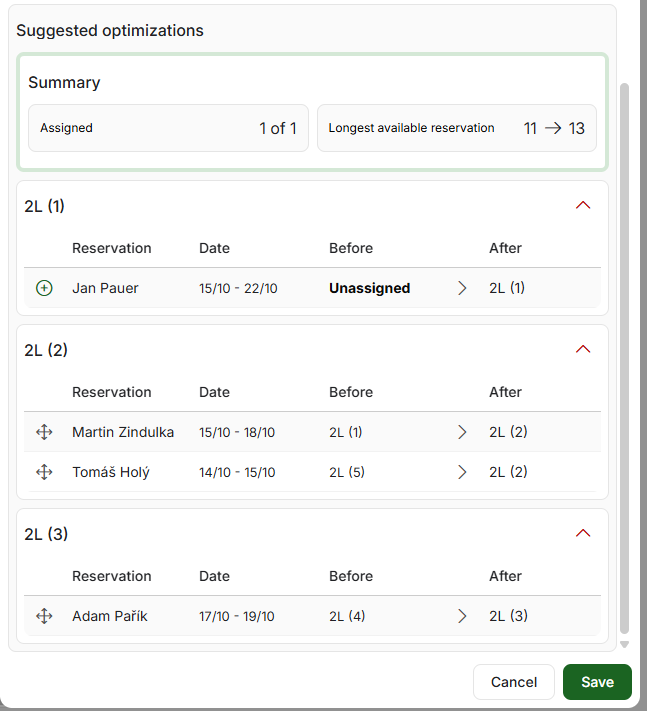
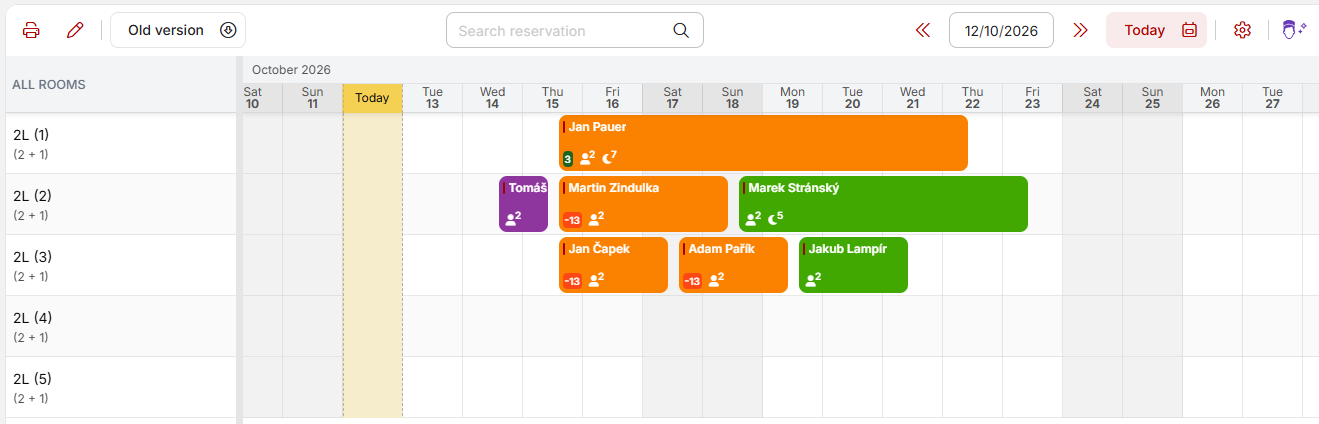
Below is a list of the suggested changes. The first reservation is assigned to a specific room, followed by a list of individual reallocations of existing reservations. Once the suggested changes are confirmed, the reservations will be allocated and rearranged, and the result will look like this.
Restrictions
- Historical reservations cannot be processed > optimisation can only be carried out from tomorrow’s date onwards.
- The optimiser ignores reservations that are already in the ‘checked-in’ status (it will not move a guest who has already checked in).
- So-called ‘room pinning/lock room function’ (a type of lock where a guest wishes to stay in a specific room) and fully locked reservations are taken into account > theseare excluded from optimisation.
- Optimisation is always carried out within a single room category only (you do not want the optimiser to reallocate reservations to more expensive or, conversely, cheaper rooms, etc.)
- If an floating reservation cannot be allocated without optimising other reservations, you will be notified of this if you select only the “Assign floating reservations” option.