Companies
This section contains a list of all the companies that have ever been assigned to a reservation in you Previo. You can also create a completely new company, which will then appear in the “Company” field suggester after you start typing company name.
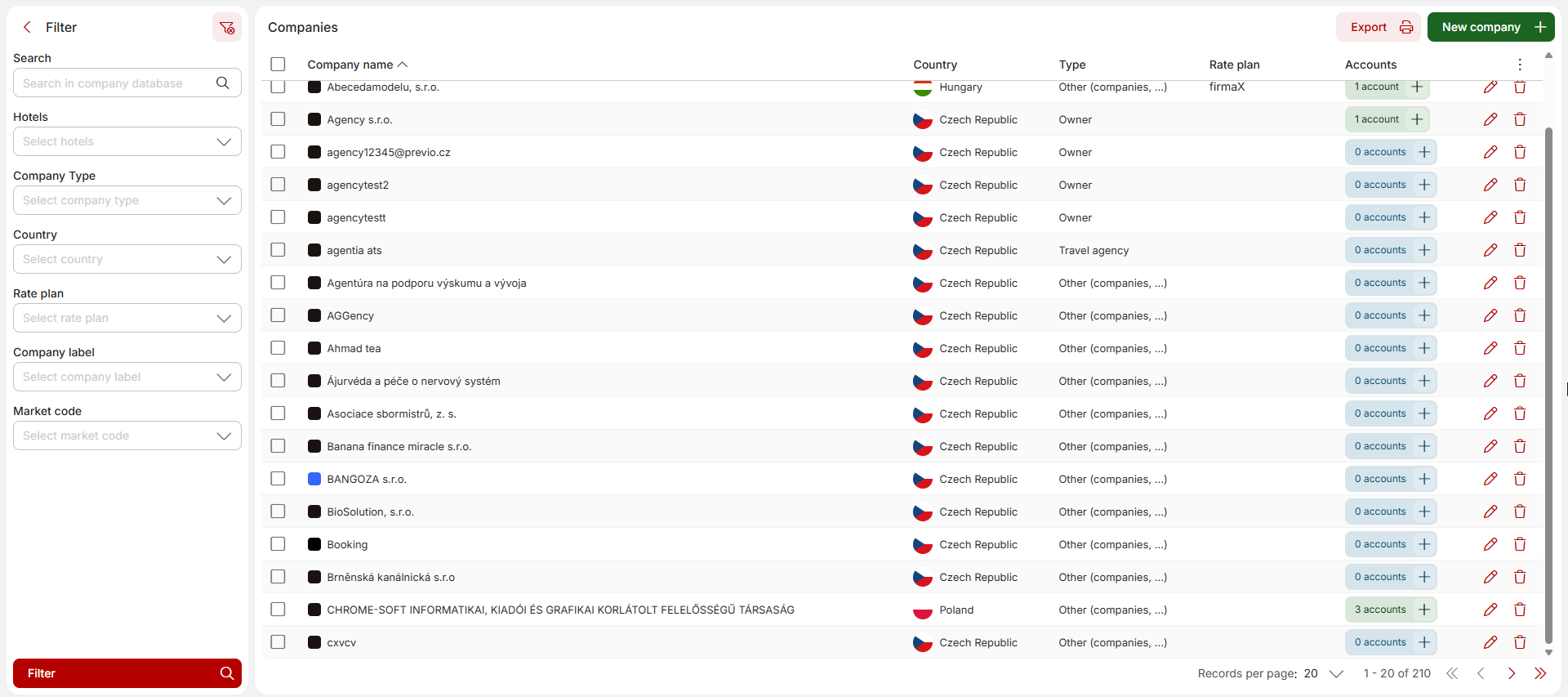
Add the new company by clicking on the green button “New company+”. This module also allows you to export a list of companies, including addresses, company identification numbers, contact information, etc., into an PDF or XLS file using the button right next to the “new company” button.
To edit existing company, use the pencil icon in the specific row or double click the row. You can also search for a specific company through the full-text search as well as through other filters in the left side panel.
Company detail
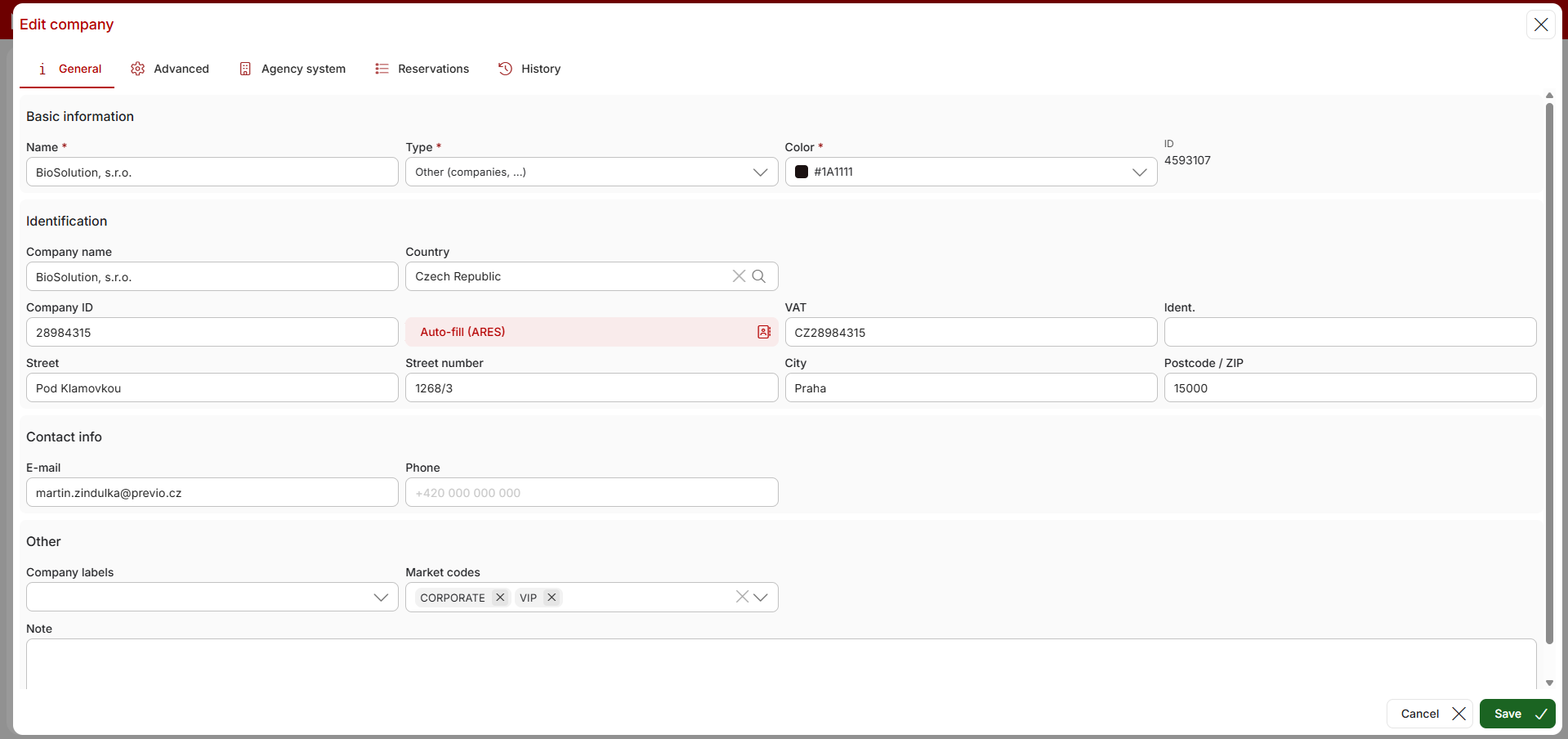
When editing an existing company or creating a new one, you can complete all the data about the given company by loading information about the given organisation from the czech register of companies ARES (same can be done for slovakian, hungarian, polish and romanian companeis). You can of course fill in the fields manually, thats up to you.
From the company detail, you can also set up Market codes assigned to specific company. If the company is assigned to reservation, selected market codes are automatically assigned to the reservation. Market codes can be used for example for generating the reservation reports based on this parameter.
Advanced settings
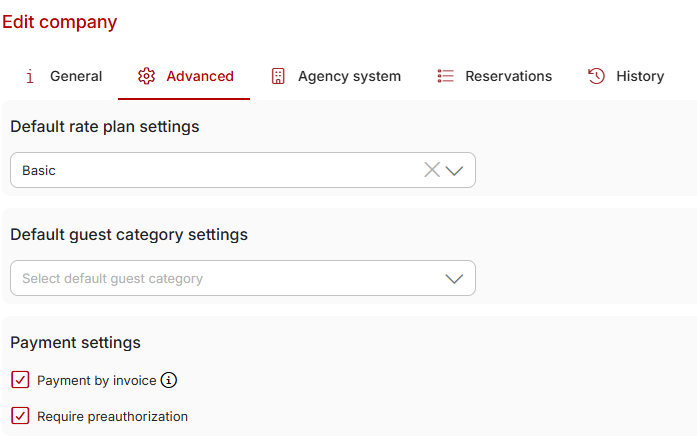
The tab Advanced allows you to assign one of the predefined rate plans to a given company which will be applied when the company will be assigned to a reservation. At the same place you can also set up which guest category should be set in reservation if you assign the company.
You can also set that the room account items should be marked with company as the “owner” in case the company is assigned to reservation.
Last option (visible only in case you have a Comgate or ČSOB gateway connected) is the required preauthorization. You can dismiss any company from having to pay refundable deposit.
Agency system
The next tab makes it possible for you to allow the company to access special booking interface called owner/agency system. The company can then use a user profile to log into the company system and monitor vacant accommodation capacities for their needs or directly create a booking for the given company. You can find more information in the section dedicated to the Agency system.
Tab is only visible in case you have the agency system active.
Reservations and History tab
In the fourth tab you are able to see brief summary of numbers and of all reservations made by this company in past 12 months.
Last section “History” contains all records about editing of this company profile (changing company name, ID or other parameters).
Avoiding duplicate records
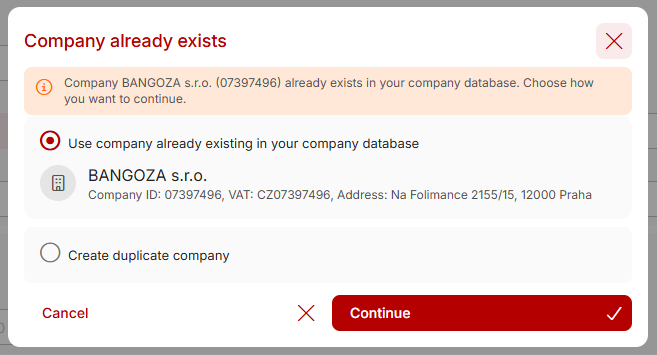
In case you enter a company which ID already exists in the DB pop-up message will appear when you will try to save the duplicate company (this will happen when creating a company in company database or creating it in the reservation detail). You can either choose to use already existing company record or to create a duplicate (in some cases company can have different branches with different names but under the same ID).
What if you have company duplicates
If you already have some duplicate company entries, there are several ways how you can manage them.
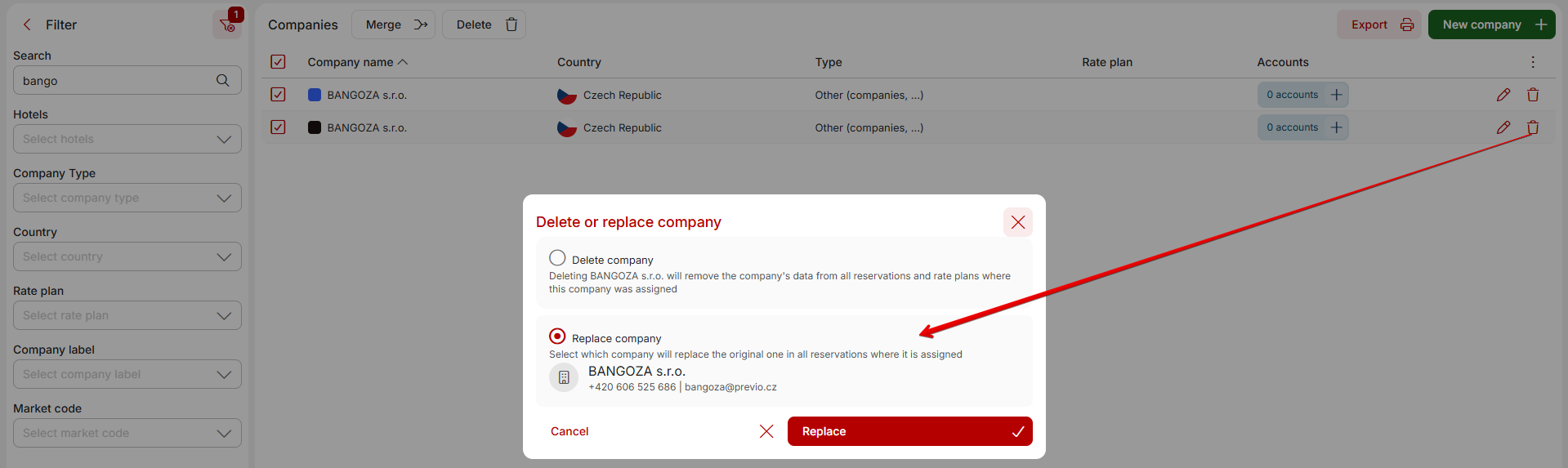
You can either filter the duplicate records and merge them by selecting them and pressing the merge button above the grid.

Or you can delete one of the duplicate records and select “replace” option with the correct company record. Deleting of the company deletes it also from reservations where its assigned. So selecting the correct company record, will reasign it to all reservations which had the duplicate assigned + the duplicate will be deleted.