


Reports for stat.authority
With this module, you can automatically generate reports that the statistical authority requires once a month or quarterly. The report is generated from Previo data, which is automatically filled in a standardized form (see the website of the statistical authority) and then can be exported in PDF file.
How to generate reports in Previo?

Press the green plus button (1) to generate a new report for the statistical authority. You can generate either a monthly or a quarterly report. The information and data for the report are taken from bookings in the Reservation Calendar (or possibly from the Guest Book, if you tick this option) and from the settings in Previo (e.g. number of rooms and their beds).
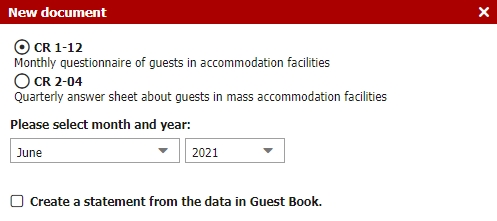
Right next to the New report button is a settings button (2) with only one item for the serial number of your accommodation facility, the so-called Pagina, under which it is registered with the statistical authority. Pagina needs to be filled in in order to generate new report.
You can print the reports in PDF format (3).
If you want to manually edit any of the automatically generated numbers in the report, you can do so via the pencil icon (4) in the Edit column.
———————-
Using this module, you can automatically generate the reports required by the Statistical Office on a monthly basis. The report is generated from data in Previo, which automatically fills out the standardized form (see the Statistical Office’s website). You can then have the reports sent automatically to the Statistical Office or submit them manually after reviewing them.
Basic Settings
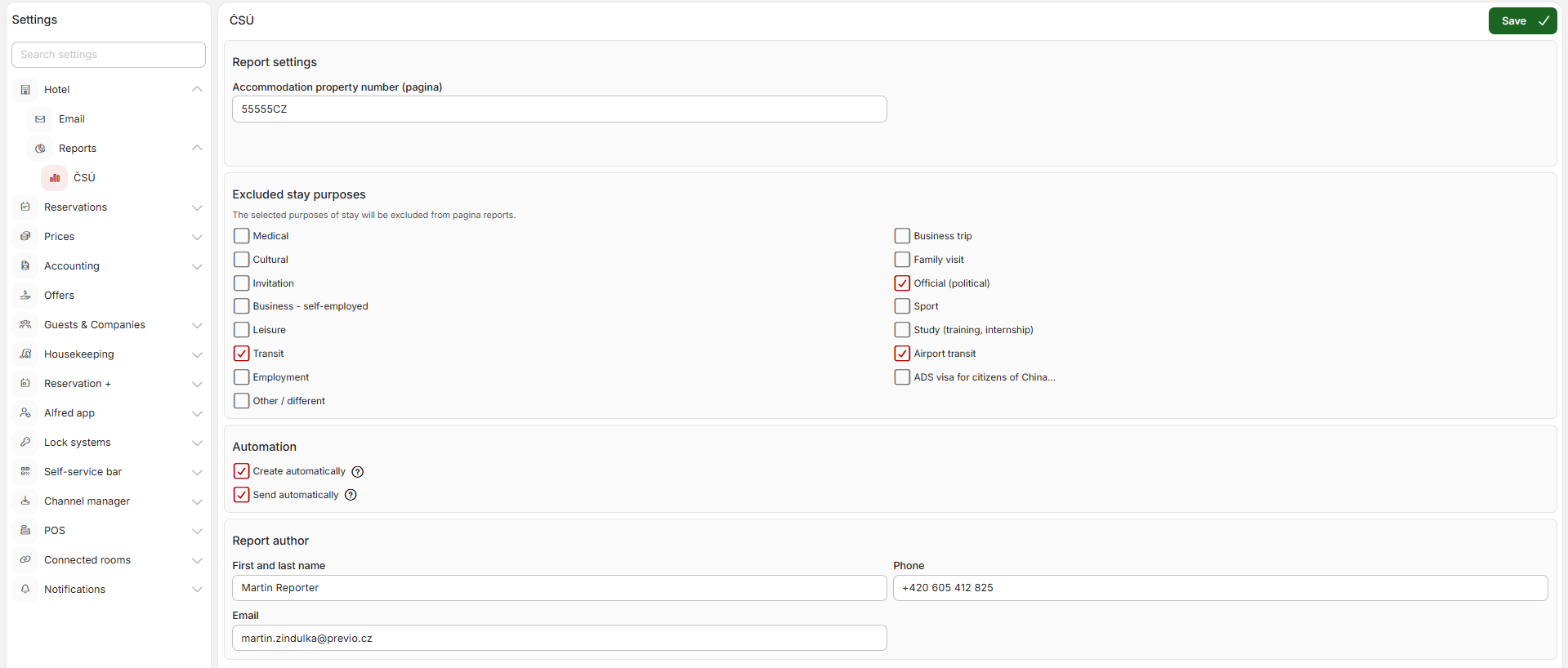
From the ČSÚ Reports module, go to the settings by clicking the gear icon to the right above the table. You must complete these settings before you begin submitting reports.
- Pagina—the serial number of the accommodation facility, i.e., the “Pagina” under which your accommodation is registered with the Statistical Office. The Pagina is assigned by the Statistical Office.
- Excluding Specific Purposes of Stay from Reports—if certain stays are not recorded or you do not wish to record them, you can simply uncheck these types, and they will not be included in the reports.
- Report Author—the report is marked with the “signature and contact information” of the preparer (the responsible person), and this information is also required for submission.
Automation
The settings also include an automation section. For full automation, simply check both options in this section. As a result, on the 8th of every month, a report for the previous month will be generated and saved in this module, and on that same day, it will also be automatically submitted from Previo to the Czech Statistical Office (ČSÚ).
If, for any reason, the report is not received by the Czech Statistical Office (ČSÚ), you will be notified, and the system will automatically create a task alerting you to the need for correction and manual resubmission.
Full automation works only if you do not want to work with source data from the ledger and do not want to generate reports for only selected room types (see the section “Manual Report Generation” below).
It is also possible to partially automate the process, i.e., to have reports generated automatically but without automatic submission. This means you can still review/edit the data and then submit it manually from Previo. For more information, see the section “Submitting Reports to the Czech Statistical Office.”
Manual Report Generation
Use the “New Report” button with the green plus sign to generate a new report for the statistical office. The information and data for the report are retrieved from reservations in the reservation list (or, if applicable, from created guest registers if you select a guest register as the data source) and from Previo settings (e.g., the number of rooms and beds).
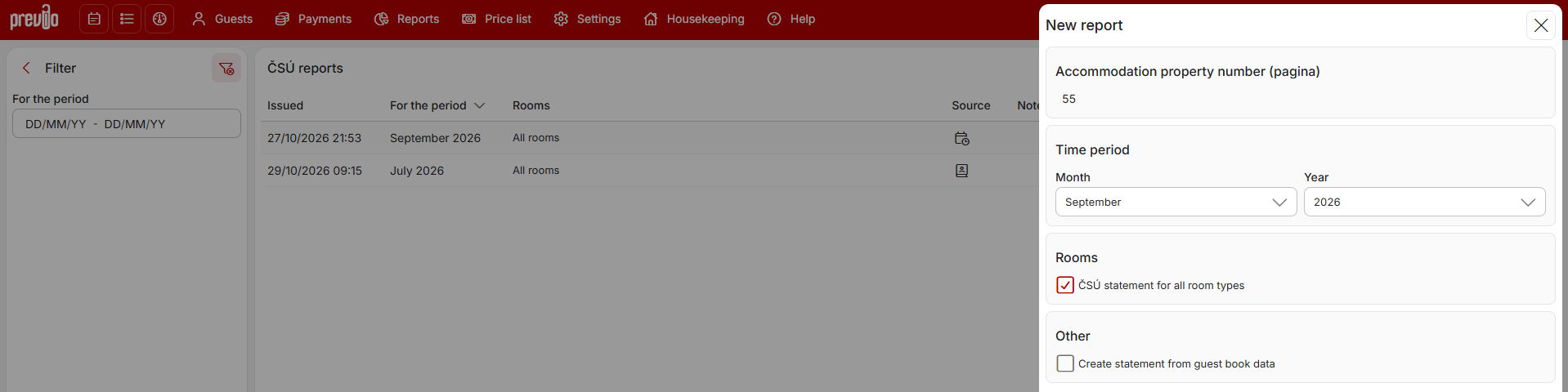
When creating a report manually, you can also generate a report, for example, for specific room types only.
Submitting Reports to the Czech Statistical Office (ČSÚ)
As mentioned earlier, you can opt for full automation. The report is generated and submitted to the Czech Statistical Office (ČSÚ) on the 8th day of the following month.
If, for any reason, you do not wish to use full automation, you can either generate the report manually and then submit it manually directly from Previo. A similar procedure is available for partial automation, where you have the report generated automatically on the 8th day of the month but want to review it before submission and perform the submission manually yourself.

You can access the submission option by clicking the “More Options” button at the end of a specific report’s row. There you will see the Send option.
If, for any reason, the direct connection to the Statistical Office does not work, you will also find the “Export as XML” option in the same menu. The downloaded report file can then be uploaded directly to the Statistical Office’s web interface.
Notification of an Unsent Report
If the report could not be submitted or was rejected by the Czech Statistical Office (ČSÚ), you will be notified of this in the “ČSÚ Status” column. More importantly, a task will be automatically created indicating that the data could not be submitted and must be checked and resubmitted manually.
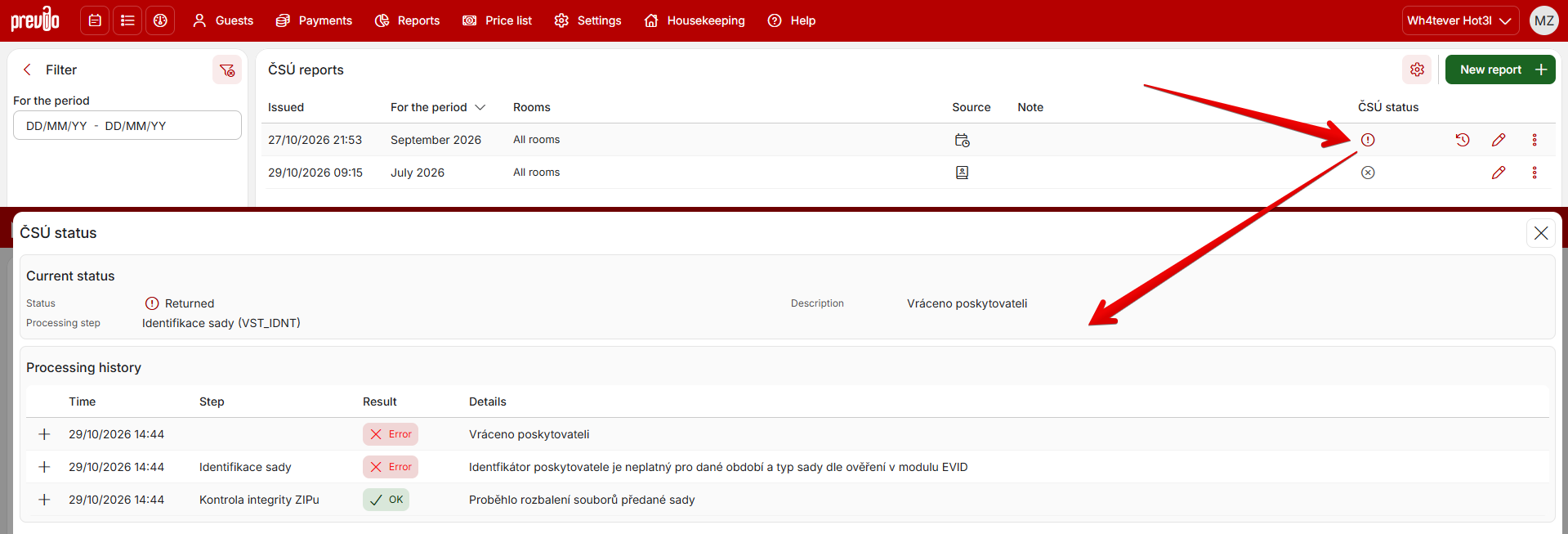
The task will be assigned to all users who have access rights to the “ČSÚ Reports” module.