


Venue reservations P2
In Previo, you can also manage reservations for so-called “venue” (or minute or hourly) reservations. These might include, for example, wellness facilities, sports facilities, conference rooms, bowling alleys, and any other spaces you rent out and need to keep track of their availability and reservations.
As the name suggests, these venues are not booked for an entire day like traditional accommodation reservations, and their duration is usually measured in minutes or hours.
Setting up venues
The first thing you need to do is create new “rooms” where you will place your venue reservations. In the Settings / Hotel / Rooms section, you can select in the header which types of rooms/spaces you want to create.

For minute-based reservations, select one of the following options: wellness, conference, dining, other – hours, or sports facilities.
Creating venues works the same way as for standard rooms. First, create a venue type (Bowling) and assign specific lanes to it (Lane 1, Lane 2, …).
We recommend setting the Opening Hours for each venue in the fourth settings tab. On the venue reservation calendar (which we’ll create in a moment), you’ll then see color-coded times indicating when your wellness facility is open and when it’s closed.
Creating the venue reservation calendar
We have created the venues and can now move on to creating a new reservation calendar for our minute-based venue reservations.
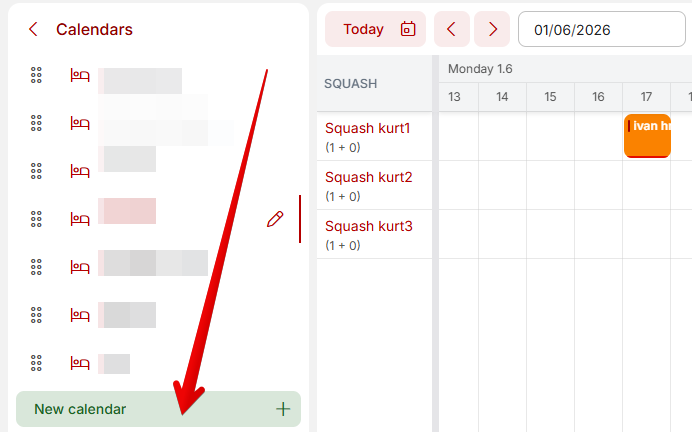
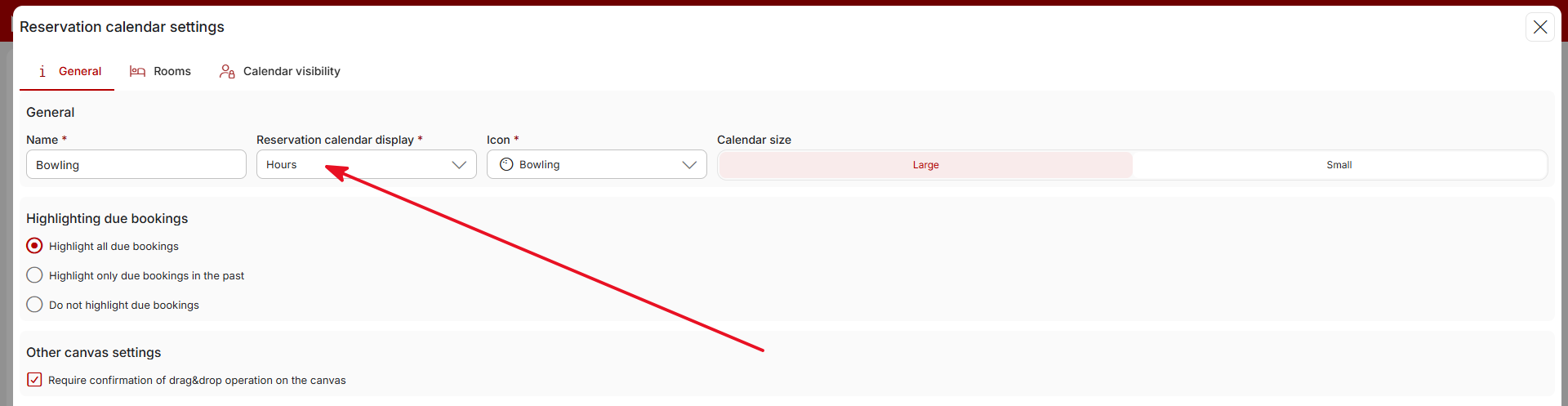
In the reservation calendar, click the green button at the bottom of the left panel to create a new calendar. It is important to select in the very first tab that this grid will apply to venue reservations (meaning that the timeline resolution should be set to hours or minutes).
In the next tab, “Rooms,” simply select the specific venues you want to include in the calendar and drag them into the left-hand column.
You can find more information about configuring the reservation calendar here.
Working with Venue reservations
You create and manage reservations in the same way you’re used to with the classic “daily” reservation calendar. All minute-by-minute reservations can also be found in the reservation overview.
To create a new reservation, drag a reservation into the calendar or click the New Reservation button.
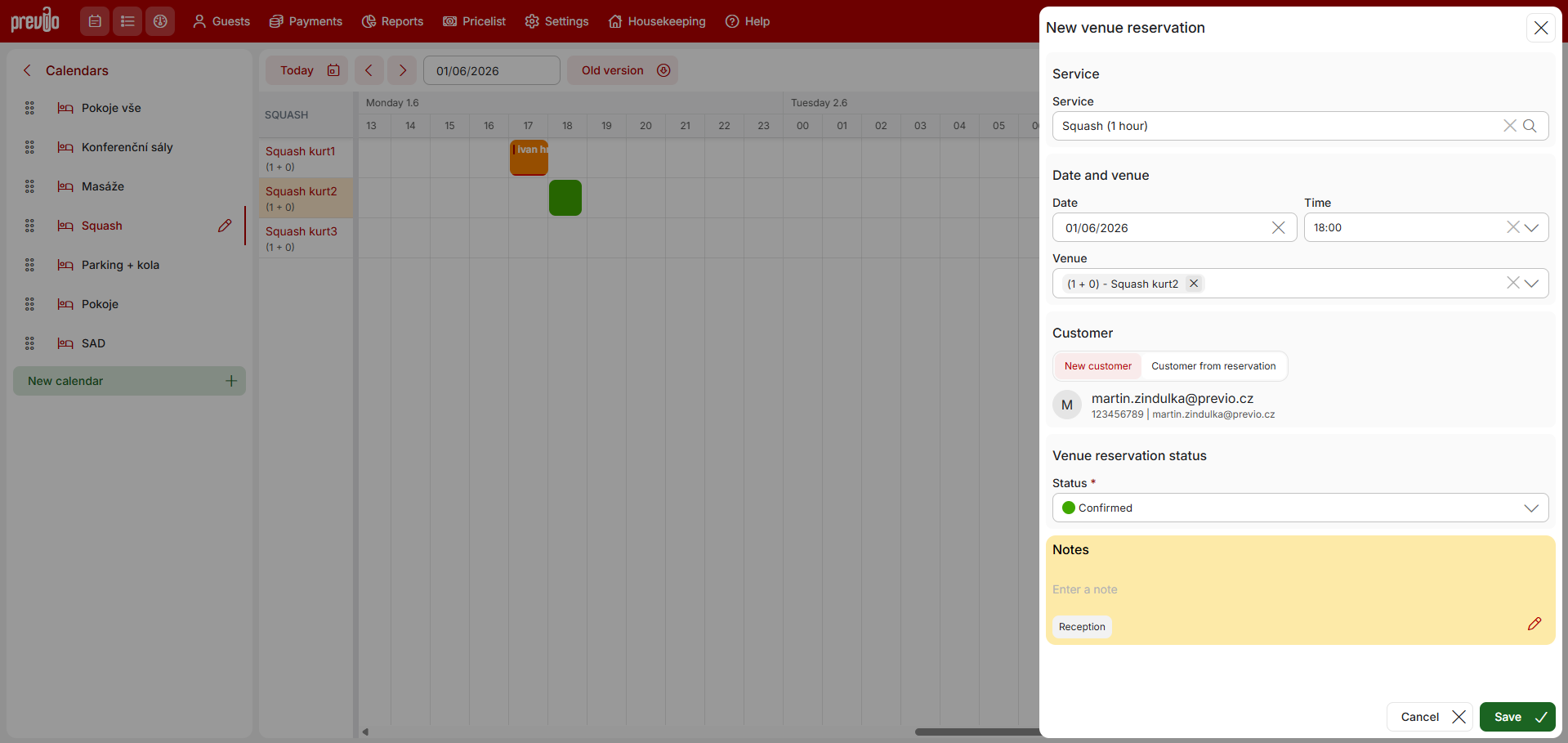
Creating a venue reservation differs from classic reservations. You can select a service linked to the reserved venue and enter the exact reservation date and time (this may be filled in automatically if the selected service has a fixed duration).
The following “Customer” section allows you to enter the person booking a specific space. You have two options here:
- New customer – the minute-by-minute reservation will not be linked to any other reservation. It can be linked to an existing reservation later if needed.
- Customer from a reservation – from the suggester, you can select any reservation in your profile to link to this venue reservation. Ideal for when you have guests staying with you who also use, for example, your wellness facilities. You can easily link the reservations. Ideal, for example, when guests pay for all additional services and expenses upon their departure.
Detail of a venue reservation
The detail of venue reservations differ from those of standard reservations. All “non-accommodation” reservations are always listed in a separate “Venues” tab, where you can further manage them and, if necessary, add additional reservations for non-accommodation venues.
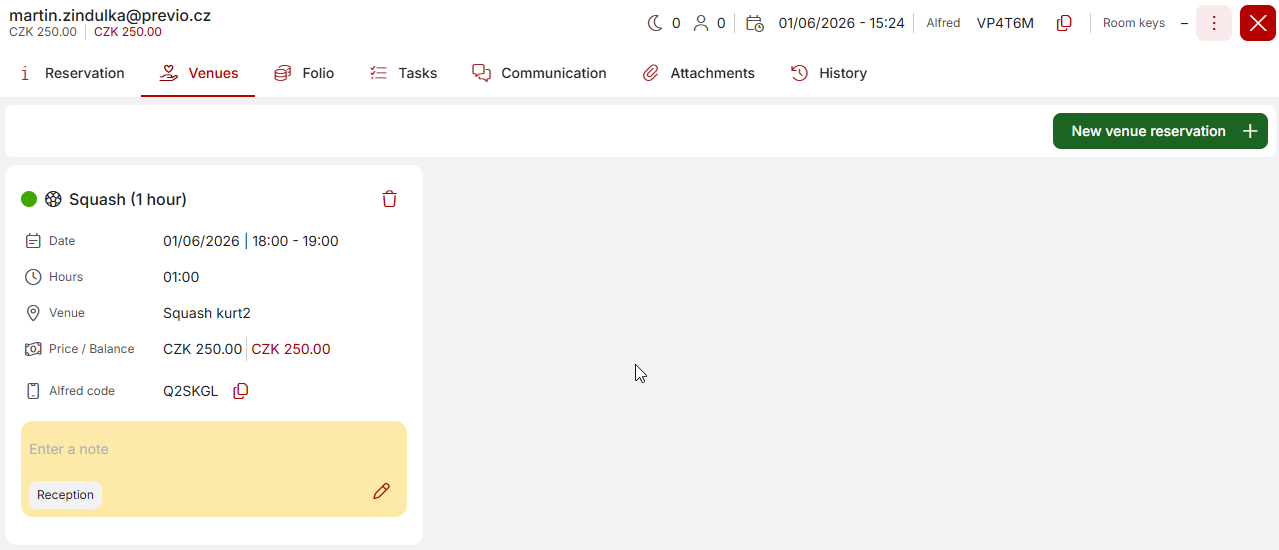
If a venue reservation is part of a standard accommodation reservation, you will see the details of the main reservation in the “Reservations” tab, and in the “Venues” tab, you will see all related reservations for additional services—e.g., all booked massages, etc.
Merging venue reservations into a group
….coming soon…..
Service settings for venues
In Previo, you can create services specifically for your venues. To link services with venue, certain basic settings are required, which are described in another section of the manual (link bellow).
Once properly configured, when you manually create a venue reservation in the calendar, only services linked to that specific venue will be offered, and you’ll also have the option to book services online for a specific time and venue.