


Reservation folio P2
In the third tab of the reservation, you’ll find the reservation’s folio details. The window itself is divided into two main sections.
The top section contains a list of all booked services – reservation folio. These may include automatic items such as the accommodation price, meals, and local taxes, or various automatically calculated discounts. You can also add predefined services, inventory items, or manually entered items to the folio.
At the bottom of the window, a table lists all documents issued for the reservation and all related important information, such as the payment status of individual documents, fiscalization status, and whether the document was emailed to the client and more.
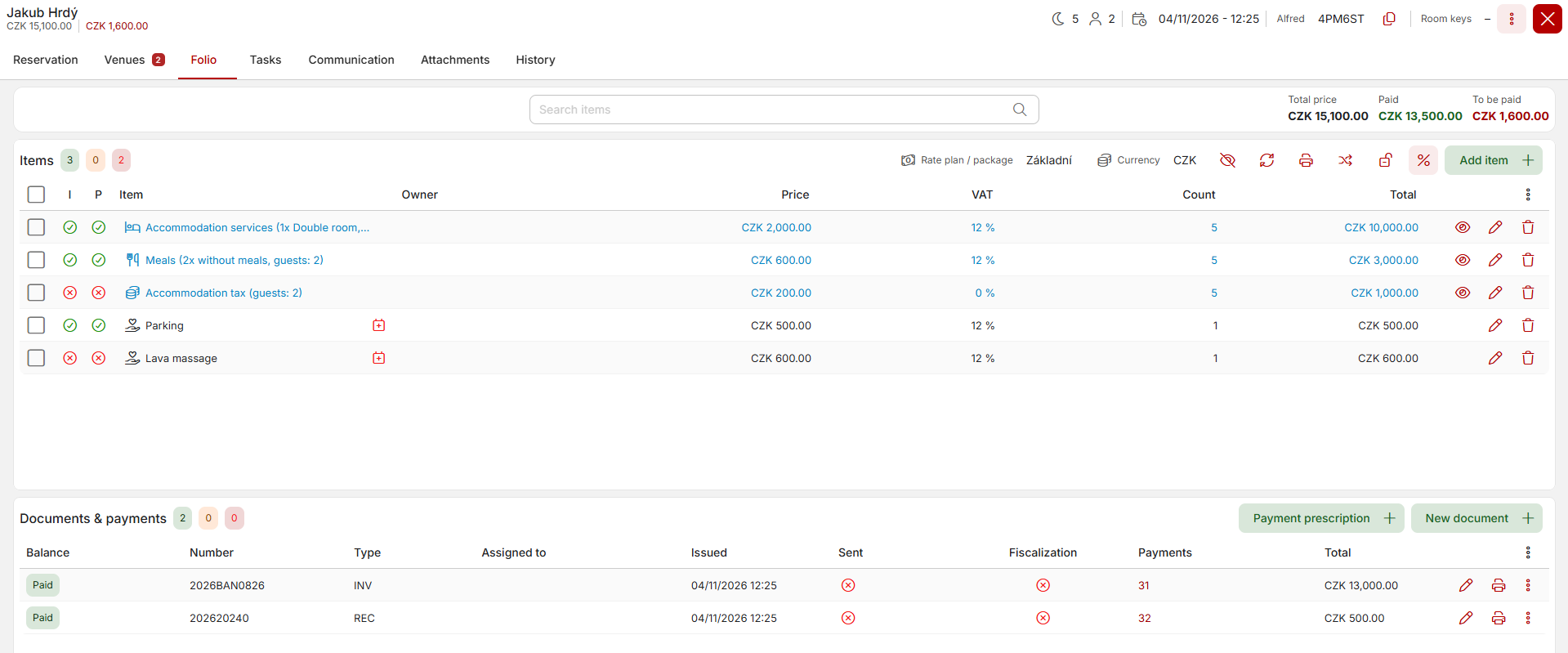
The logic for working with the folio is as follows: all items in the folio should be listed on issued documents, and payments of the corresponding amount should be assigned to these documents.
The reservation balance amount in the upper right corner above the items is the sum of the items in the reservation folio total minus the total amount of payments for that reservation. Ideally, the balance is zero—all items have been invoiced and the documents have been paid with the assigned payments.
Changing the rate plan
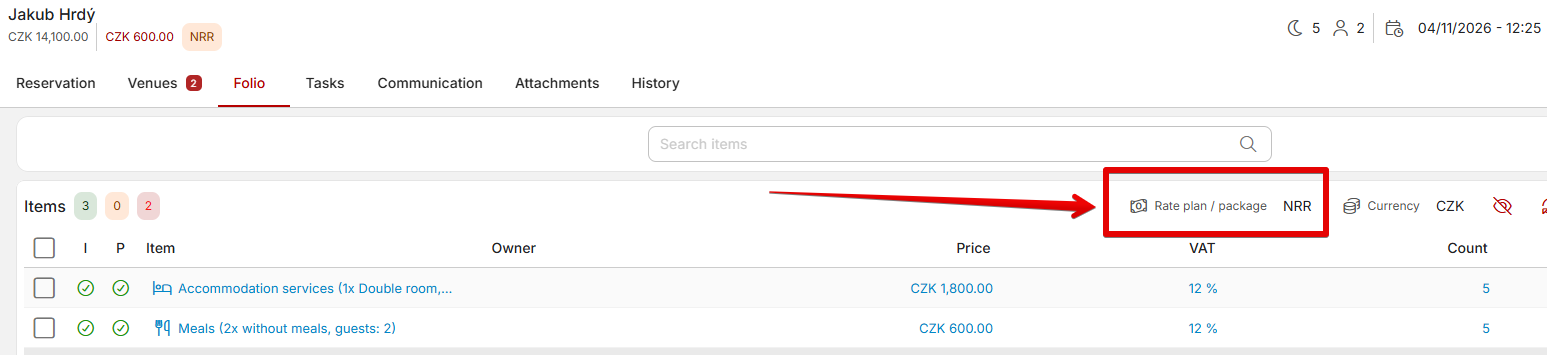
Above the folio, you can change the rate plan assigned to a given reservation. The reservation price is determined based on the rate plan. When you change the rate plan, the folio total will be recalculated based on the current rate plan selection.
Recalculating the folio
Some items on the reservation folio automatically adjust to changes in the reservation parameters. Specifically, these may include accommodation, meals, local taxes, and various discounts. If a reservation parameter changes (number of nights, number of guests, guest category, meal plan, etc.), you will be prompted to confirm a recalculation of the folio based on the change made.
If the folio items have not yet been included in any document, confirming the recalculation will simply replace the old items with new, updated ones (new number of nights, change in meal plan, removal of a stay fee when changing the guest category to “child,” etc.).
You can also automatically disable reservation recalculation (Settings / System / Folio ) or lock the folio manually (described below).

Locking a folio
You can also use the button below to lock a specific reservation’s folio against any further recalculations caused by changes in reservation parameters.

Working with the folio
You can add new items to the folio using the plus button in the upper right corner. You can select a new item from the suggester feature, which will offer you all defined services and inventory items. You can also enter any item into the account that is not predefined (add custom item option).
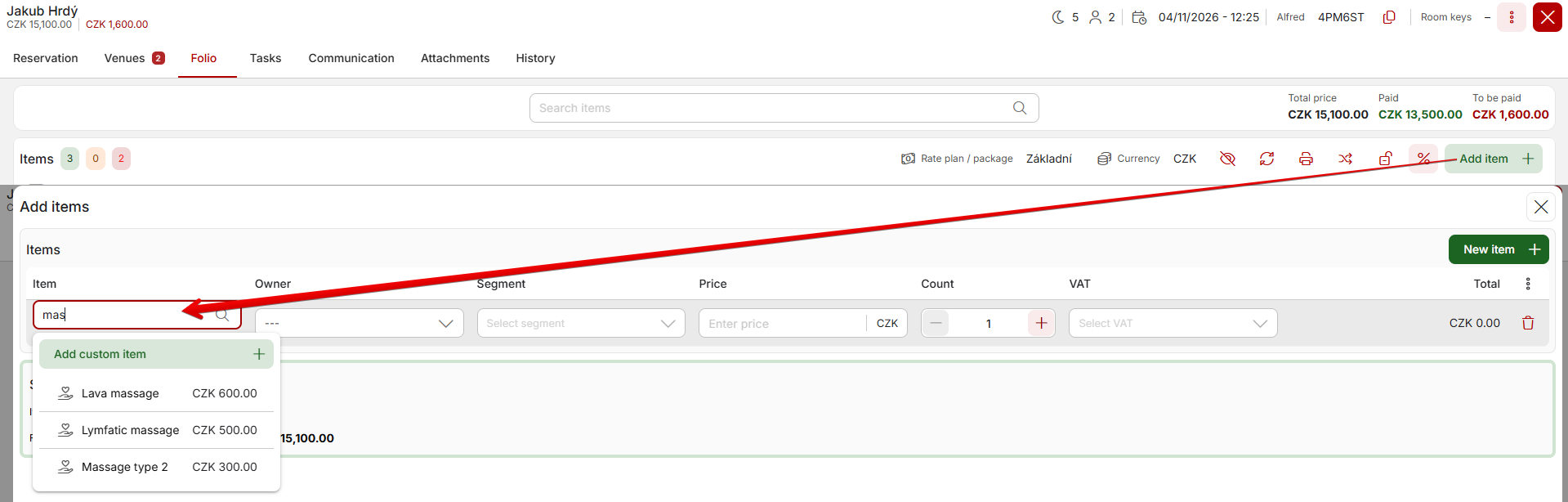
You can freely edit existing items in the folio by clicking on the corresponding row. For example, you can change the text, price, quantity, or VAT rate.
Access to items in the bill can be restricted for individual user roles as part of user permissions. For example, you can prevent a specific group of users from adding their own items, changing the VAT rate, etc.
You can also add a percentage discount or surcharge to the hotel bill or change the total reservation price using the % button. You then select the amount of the discount or surcharge and specify which line items in the folio will be used to calculate it; the discount will be added as a new line item to the folio.
The third option in this window is to change the total price of the reservation. Once you enter the final price, the system automatically calculates the discount you wish to offer the guest and reduces the amount of the accommodation services line item by that amount. Other line items, such as local tayes, services, or stock items, remain at their original values.
It is also possible to convert the hotel folio to a different currency for further billing; simply select the exchange rate and confirm the conversion.

To the right of the currency selection, you’ll find several additional buttons for merging and splitting automatic (blue) line items in the bill. Items such as accommodations, local taxes, discounts, etc., can be split, for example, by night or by individual guest—a feature you’ll appreciate during more complex billing situations, such as when each guest wants to pay only for their portion of the stay.
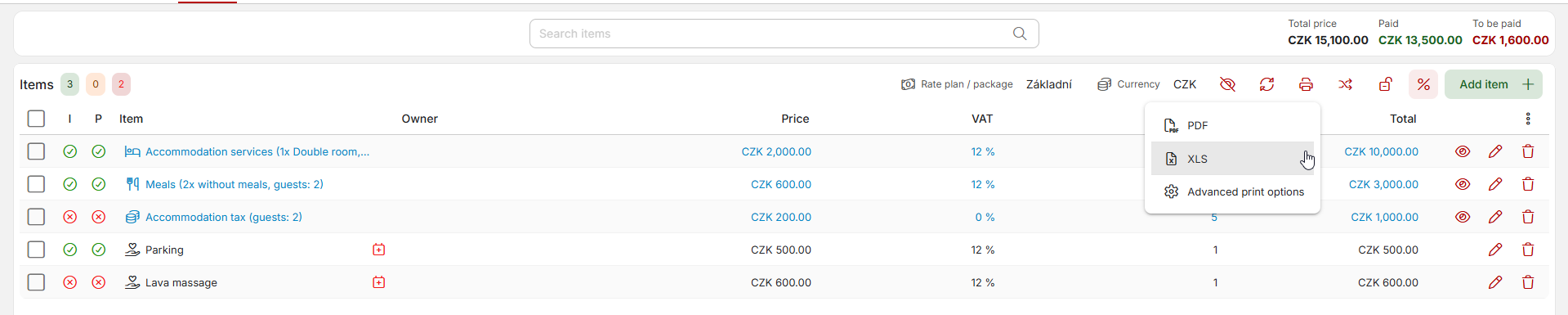
Finally, we’ll mention the option to print a preview of the folio for guests who want to review their charges.
By clicking the printer icon, you can print a detailed bill broken down by individual items in PDF or XLS format.
Documents in a Reservation
You can create a new document in a reservation by clicking the New Document+ button.
You can also assign an existing document to a reservation. The only condition is that the document must not be linked to another reservation.
Conversely, you can also remove documents from a reservation. For a specific document, click the three-dot icon (more options) to find this option.
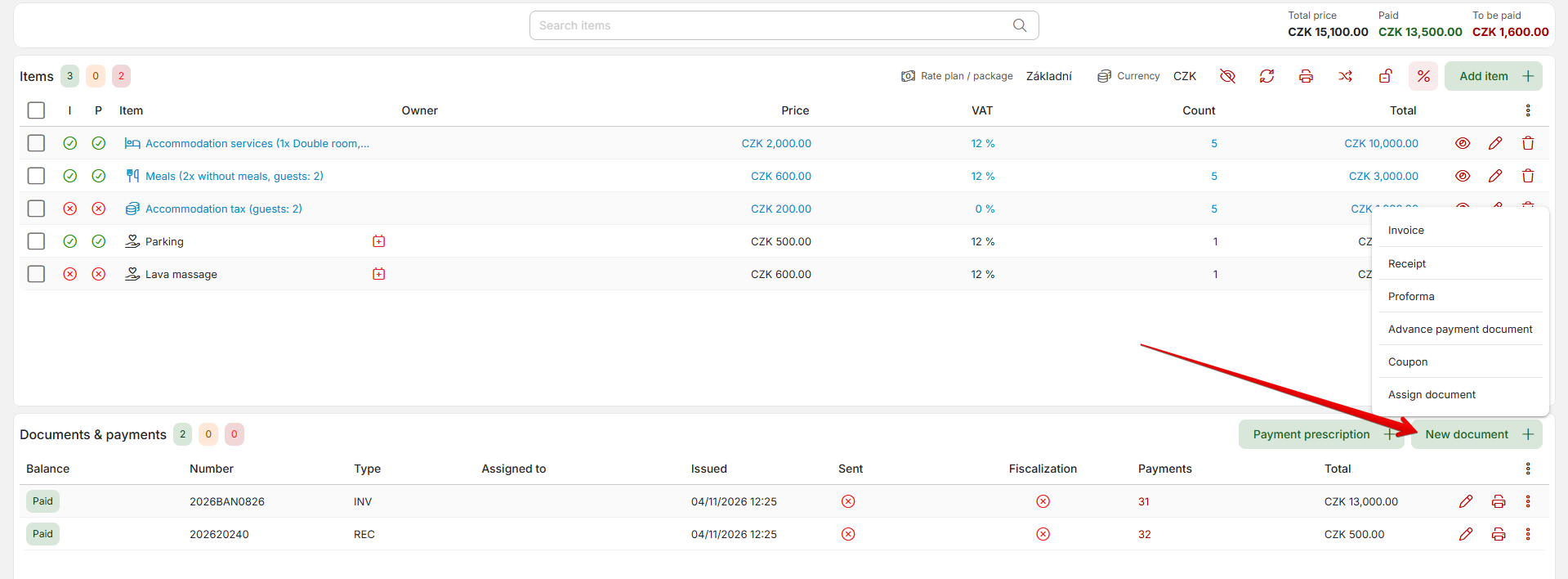
For each document, you can see all the important information at a glance—type, payment status, issue date, whether it was sent to EET, whether it was emailed to the client, and the total price.
You can also easily print it or perform further actions (add a payment, send via email, etc.) using the action icons at the end of the row.
Payments in a Reservation
There are several ways to pay for an document in a reservation:
- The document may already have been issued with payment included—typically a cash or card transaction.
- In the details of a saved document, there is a “Pay” button that immediately creates a payment for the document amount using the corresponding payment method—typically, we received a payment via bank transfer for a previously issued advance invoice.
- From the document details or from the document table in the folio, click the button with three dots (more options), where you’ll find the “Add Payment” option —this opens a pop-up window pre-filled with the document’s parameters, and you can, for example, change the amount paid (if it was only a partial payment) or simply confirm the window to create a payment for the document’s amount using the corresponding payment method.
The payment status of individual documents is then visible at the beginning of each row, and the “Payments” column also displays the numbers of specific payments (you can click to view details). Next to the heading of the entire document section, the number of paid, partially paid, or unpaid documents in the reservation is also indicated using the same status colors.
