


ScanID
ScanID is a software document reader that works on mobile devices within an internet browser.
You log into the application using the same login name as for Previa at https://scanid.previo.app/.
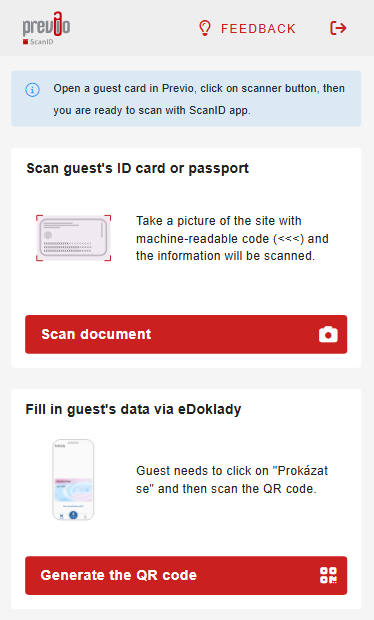
After logging in, you can choose from two options for reading guest data:
- Scanning the document content from the MRZ (machine readable zone) and, if applicable, from the address information if it is provided on the document.
- Obtaining guest data via the eDoklady application.
How to work with ScanID?
- Log in to Previo and use the same user account to log in to the ScanID app.
- Open any reservation in calendar and any guest card in reservation detail. In the bottom part of the window, press “Scanner” button.
- Press “Scan new document” button ScanID app and “take a picture” of the document side which contains machine readable zone of the document (MRZ). We highly recommend to take a picture horizontally – reading of guest data from the picture is then much more effective and successful.
- It is important to have good light and try to fit the whole document into the picture and nothing else. This way you will accomplish the best results.
- Information from MRZ will be automatically transfered to guest card in Previo. If the address is on the same side as MRZ we will also try to recognize/scan the address information and also send it to guest card in Previo.
- All scanned information are also visible in the app right after the scan is finished. In case something was scanned incorrectly, you can always repeat the scanning.
How to load guest data from the eDoklady app?
- Log in to Previo and log in to the ScanID app at https://scanid.previo.app/ using the same user account.
- Open the reservation and any guest card in Previo. At the bottom of the window, press the “Scanner” button.
- In the ScanID app, click on the second option, “Generate the QR code.” It will immediately appear in the app.
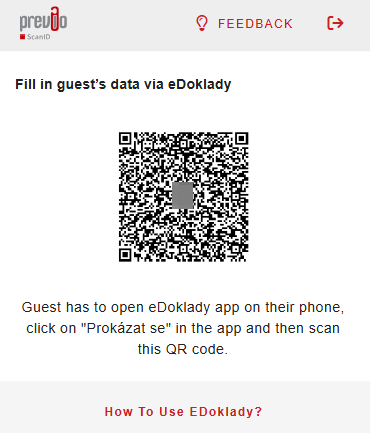
- The guest then selects the “prove identity” (prokázat se) option in their eDoklady app, scans the QR code you generated, and confirms the transfer of the data required for check-in.
- Once the guest has confirmed in the eDoklady app, all the data will be transferred to the corresponding sections of the guest card in Previo.
How to activate ScanID?
Please contact your sales consultant for activation of the app.
- Up to date prices of the ScanID app are listed in our website pricelist.