


Calendar settings P2
In Previo, you can create multiple reservation calendars for better orientation. The most common setting is, for example, dividing rooms into individual calendars according to room type (calendar for double rooms) or according to floors of the building (calendar with rooms on the third floor, etc.).
However, you can always have one calendar that lists all available rooms. You can switch between calendars at will using the left panel next to the name of the rooms in the given calendar.
If a room is listed on multiple calendars, its “row” contains the same reservations on all calendars. Adding a reservation for a room from one calendar will also affect the other calendars with this room.
Creating a new reservation calendar
You can create a new calendar using the green plus button at the bottom left of the side panel with the Calendars list. A settings window will open.
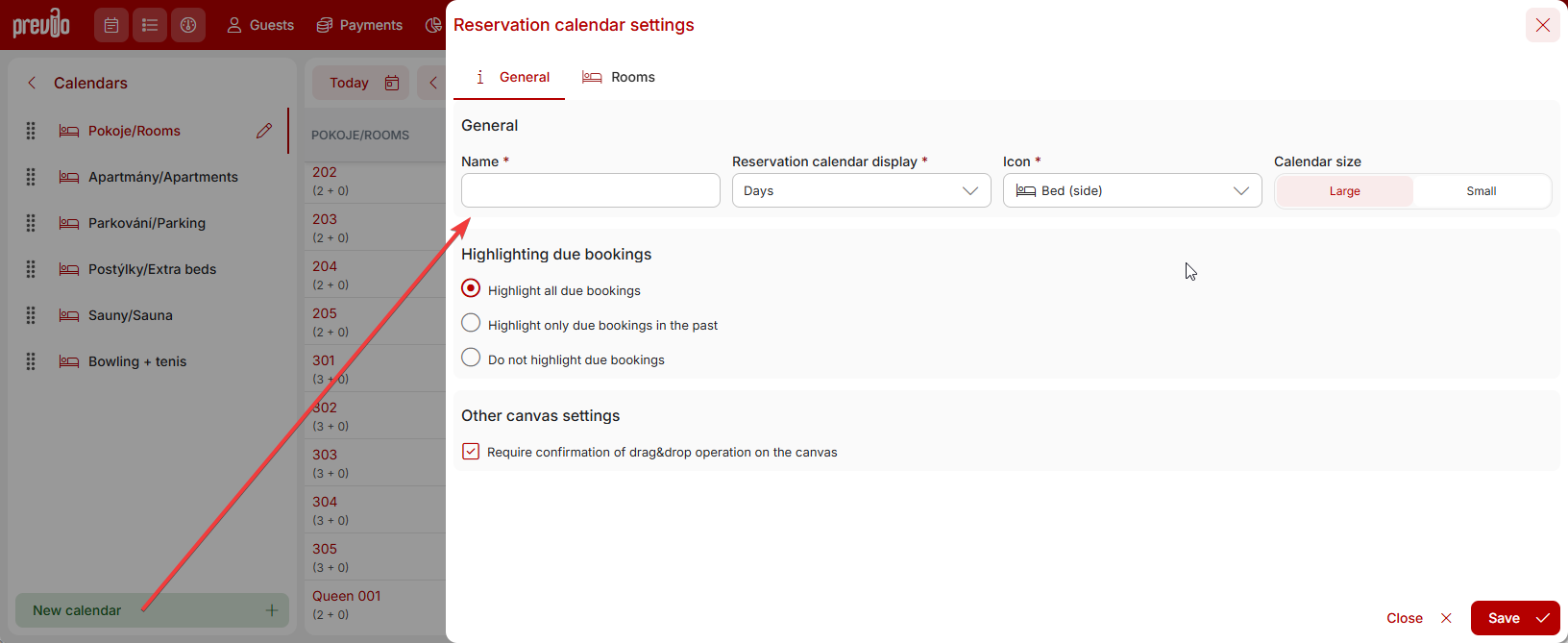
First, set the name under which the new calendar will be displayed. Another optional setting is the display of the calendar timeline. That is, whether it will be by days (classic rooms) or by hours and minutes (wellness, conferences, sports facilities, etc.).
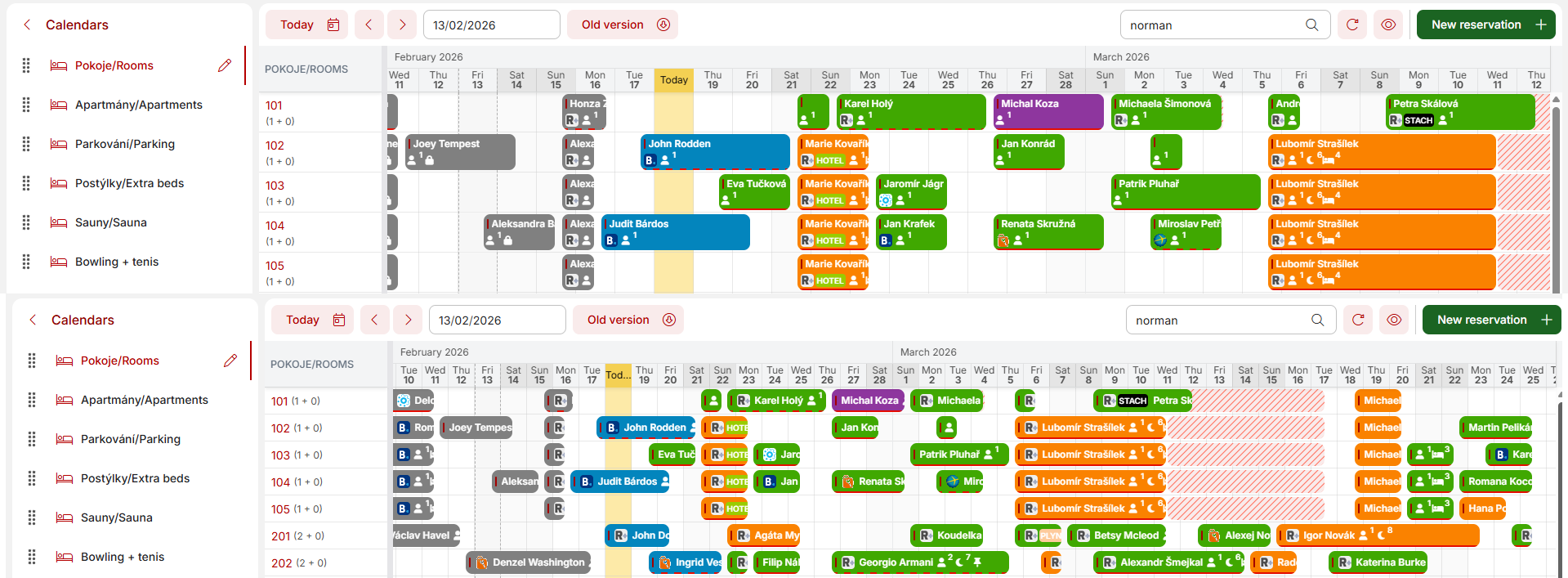
The choice of calendar size is also important. Both options have their advantages and disadvantages. You will appreciate the smaller version especially when you have a large number of rooms and want to see as many rooms as possible in the calendar (without having to scroll). However, compared to the larger version, you will lose the “two-line” display of each reservation, where you can see more information about the reservation at a glance in the reservation preview. See the image below for a comparison of the different sizes.
You can also set whether you want to highlight unpaid reservations and whether it is necessary to confirm changes when manipulating reservations by “dragging.”
Once you have set this up, we can move on to the second tab, Rooms.
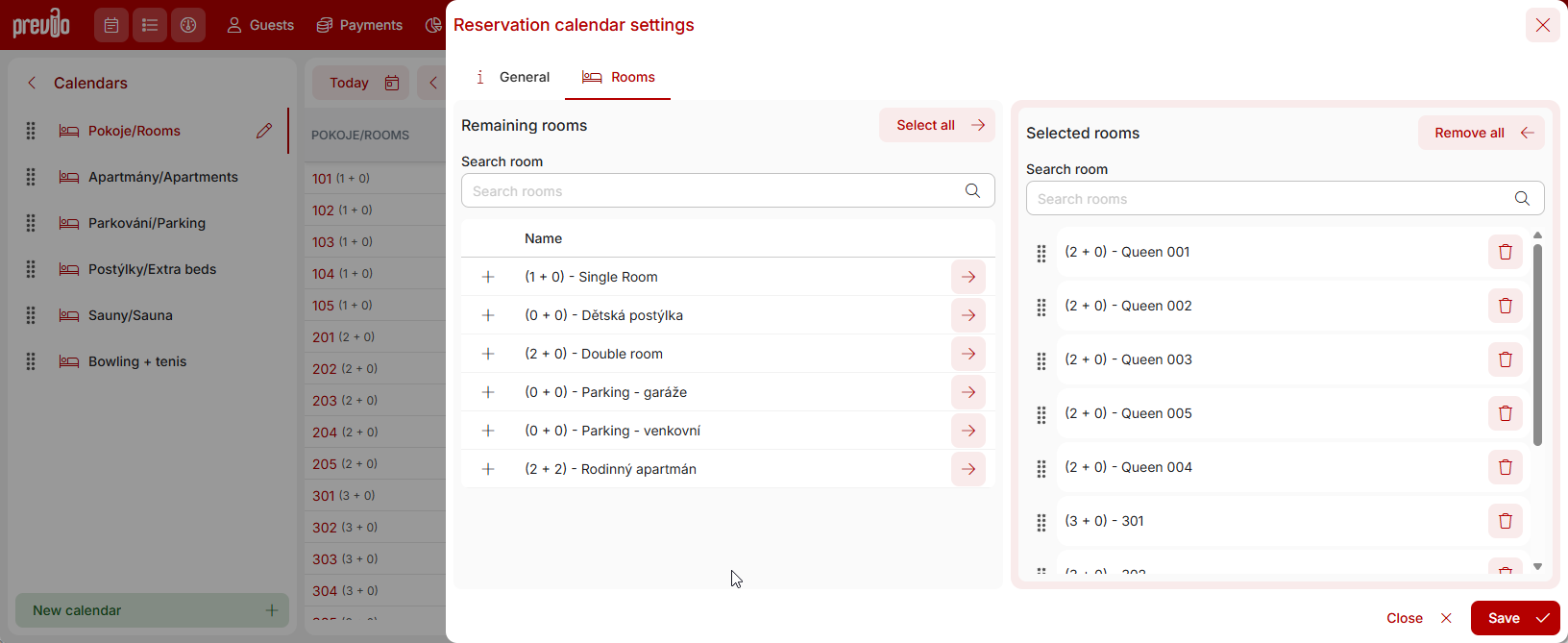
This window contains two tables. On the left is a table of all your rooms. When creating a new calendar, your task is to move the selected rooms to the right column and arrange them in any order you want them to appear in the newly created calendar.
The order and selected rooms in the calendar can be edited retrospectively, so you can always return to the settings if necessary.