Basic information P2
The reservation calendar (hereinafter referred to as “calendar”) is the module you will use most often when working in Previo.
The calendar provides a clear graphical overview of all your rooms and reservations. It is updated automatically, i.e. when you receive a new reservation, it is automatically loaded and displayed in the sheet (the same applies to cancellations).
You can create new reservations, edit existing ones, enter guest information, and much more directly from the calendar.
Navigation, scrolling through the calendar, and searching
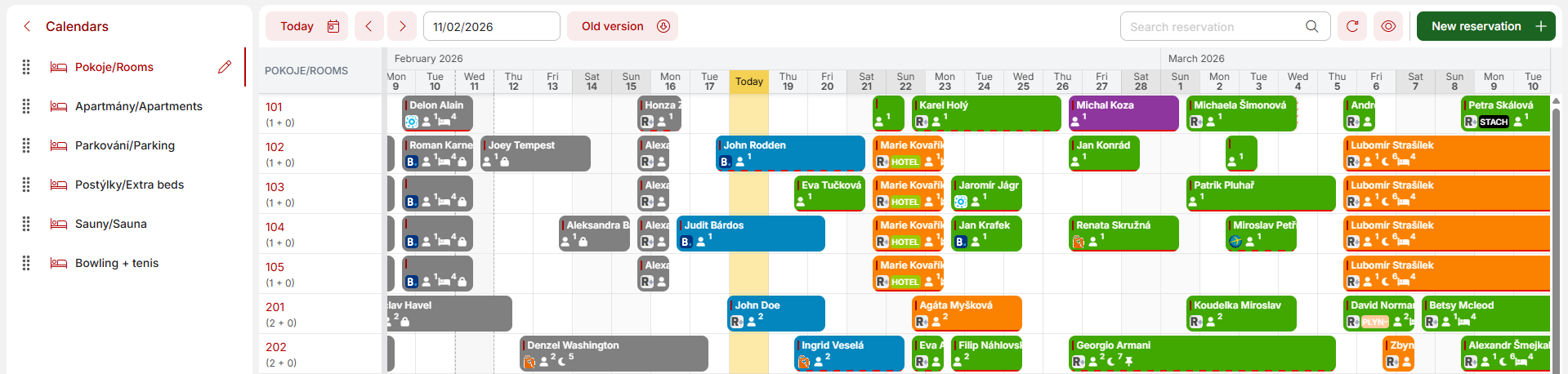
The main part of the reservation calendar is defined by a horizontal timeline divided into individual days and a vertical axis that shows us the individual rooms.
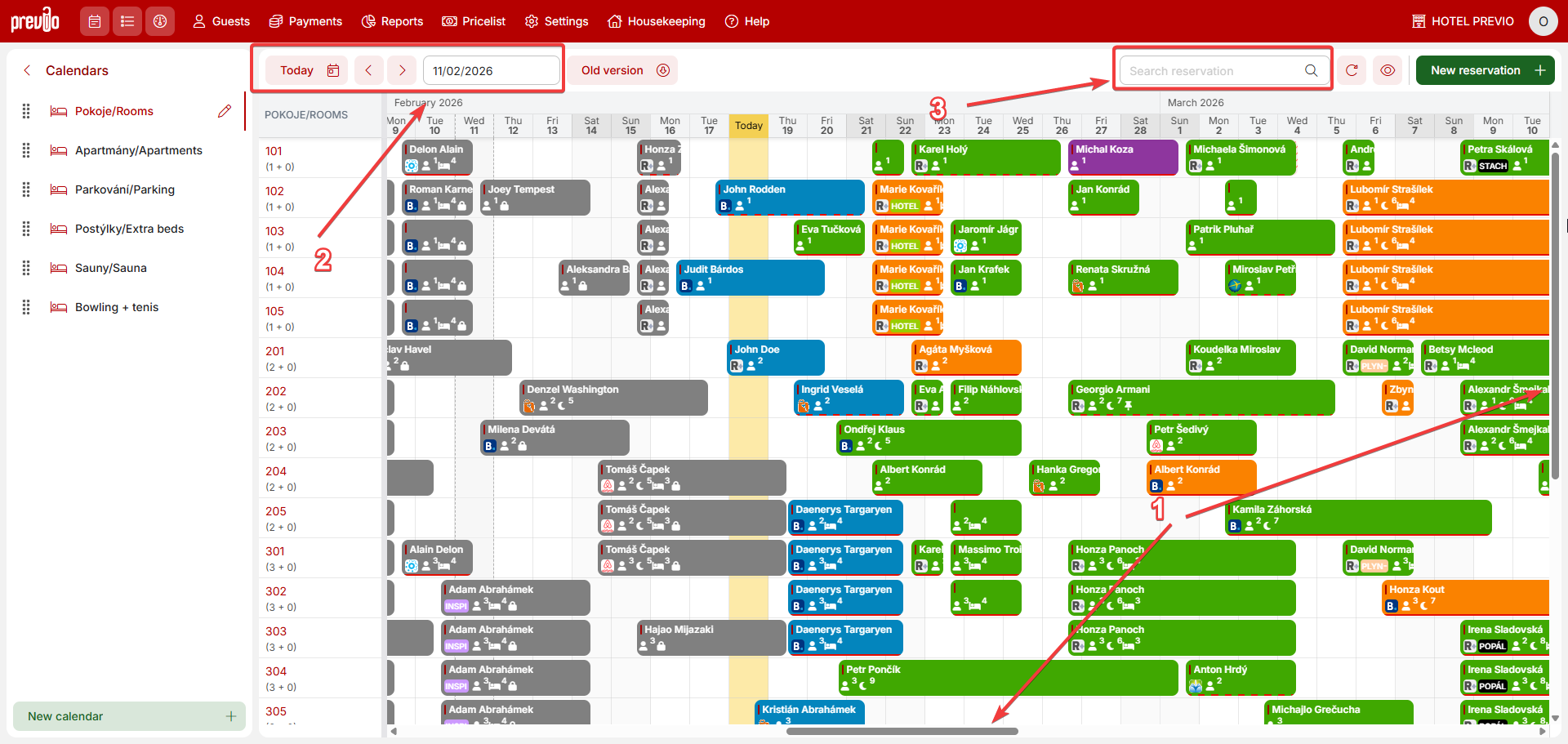
There are three ways to navigate the chart.
- Side and bottom scroll bars
- Date selection, icons for moving by month, switching to the current day
- Full-text search
Using full-text search (as the name suggests), you can easily find a specific reservation, e.g., by guest name, company name, reservation number, etc.
Displaying the calendar by reservation status/balance
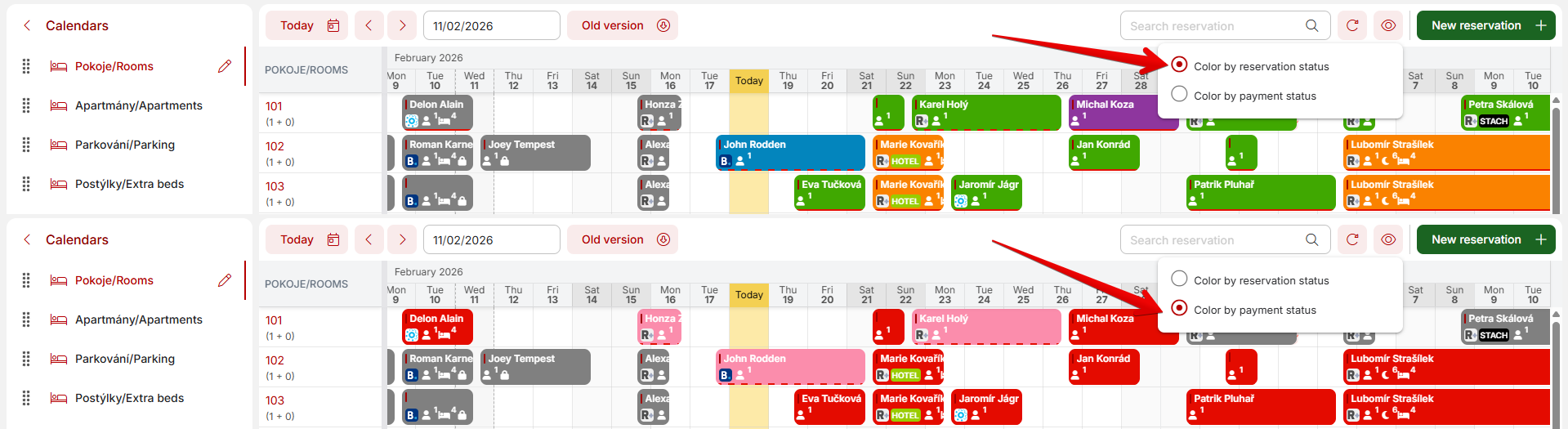
In the default view, the sheet is displayed (in color) according to reservation status, with the payment status of reservations indicated by a red line at the bottom of each reservation.
Alternatively, it is possible to display the chart inversely, i.e. by color according to the payment status of individual reservations, with the bottom background color indicating the status of the reservation.
You can switch between the two statuses using the button to the right above the chart.