


Switching to new version
In the Previo system, you can now work in both the old version (P1) and the new version (P2). You can choose which version you want to use for working with the schedule and reservations.
As you probably already know, the new version is currently designed primarily for mobile devices, but we will continue to expand its functionality and, over time, it will fully replace the old version for use on computers.
How to switch from P1 to the new version (P2)?
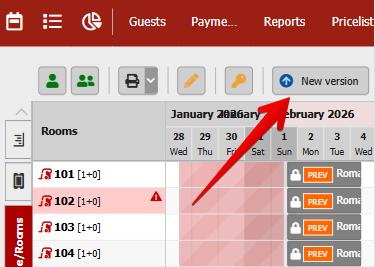
- There is a “New Version” button in the left corner of the sheet.
- Click on the “New version” button.
- After confirmation, the system will automatically redirect you to P2.
How to return to the old version (P1)?
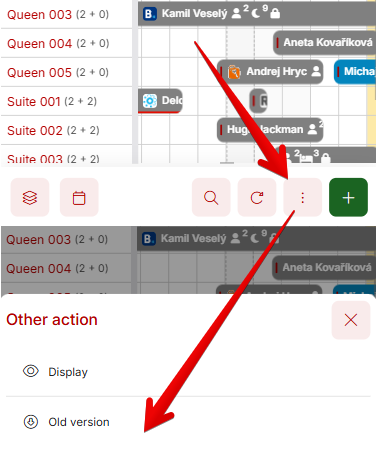
- In the new canvas on your mobile phone, select “Other actions” (three dots at the bottom).
- Here you will find the “Old version” option.
- The calendar module will reopen in the old interface.
💡Tip: The system remembers your version selection for a specific browser and device. If you switch to the new version, it will remain active for that browser and device until you manually switch back. Ideally, switch to the new version on your mobile phone. Any time you log in from your mobile phone, you will be directed to the new version. However, if you log in with the same Previo account on your computer, you will automatically be logged into the old version unless you also switch to the new version on your computer.
You can log in to the application at https://pms2.previo.app/ (https://pms2.previo.app/?use_new_version=true). The login details are the same as for the classic Previo.