Reservations in calendar P2
Creating new reservations in calendar
There are two ways to create new reservations. The first way is to use the button located at the top right above the chart. After clicking, a window for creating a new reservation will open, where you can specify whether you want to create a single reservation or a group reservation.

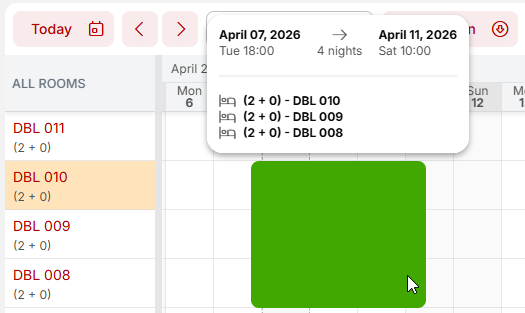
The second way is to drag the reservations directly onto the chart with your mouse. If you “drag” onto multiple rooms, you will create a group reservation. Similarly, by holding down the CTRL key, you can drag multiple different reservations, which will then be created as a group.
Manipulation with reservations in the calendar
You can manipulate reservations on the chart in three different ways:
- By opening the reservation details (double-click) and editing the necessary parameters.
- By dragging and dropping reservations on the chart, or extending/shortening them by dragging the edge of the reservation.
- Using the right mouse button (see below)
Right-click functions
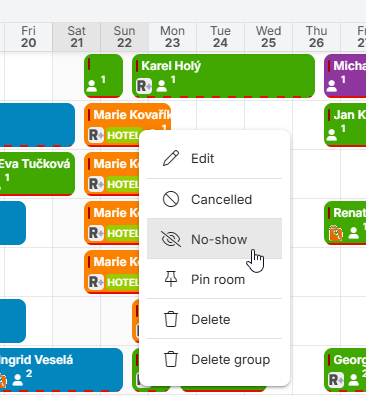
Right-clicking on a reservation opens up a wide range of options. You can:
- Edit – same as double-clicking on the reservation and opening its details
- Lock/Unlock room change – this prevents the reservation from being moved on the chart (ideal, for example, if a guest specifically requests a particular room and no one should move the reservation elsewhere. Unlocking/locking can be restricted by user rights
- Cancel – switch to canceled status
- No-show – switch to no-show status
- Pin room – lock reservation against changes of room
- Delete – completely delete this reservation (+ delete group in case of group)
Reservation previews
When you hover your mouse over a reservation, a quick preview will always appear, where you can get basic information about the reservation without having to click on it.
For individual reservations, we display information about guests, meals ordered, reservation number, notes, market codes assigned to the reservation, as well as the hotel bill amount, the amount already paid, and the balance (how much remains to be paid).
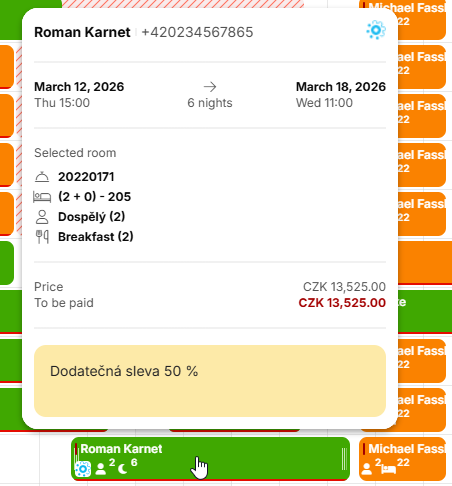
For group reservations, the preview is expanded. It contains the same information as for individual reservations, but we also have information about the entire group, notes, and the reservation account preview is expanded to include a column with the total amount of all individual reservations together.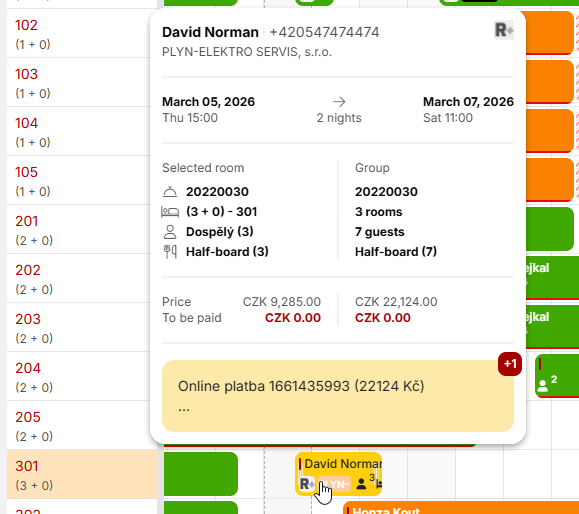
Explanation of reservation pictograms
You can find basic information about a reservation by looking at the reservation itself without having to display the preview. The color of the entire reservation corresponds to the status of the reservation (option, confirmed, accommodated, terminated, other).
The first line always displays:
- The name of the contact person or guest
- Information about check-in completion (a red vertical line before the name indicates that the reservation has not yet been fully checked in. If the check-in is complete, nothing is displayed before the name).
In the second row, we also display:
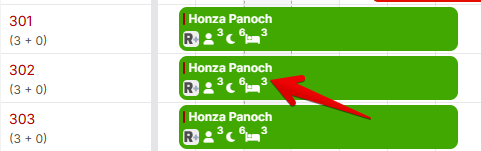
- Partner icon (if the reservation is from an OTA)
- Company abbreviation (if assigned to the reservation)
- Number of guests (silhouette icon)
- Number of nights (moon icon)
- Number of reservations in the group (bed icon, only for group reservations)
- Locked against any changes (lock icon)
- Locked against room changes (pin icon)
- Bottom highlighting of the reservation (red = unpaid, dotted red = partially paid, no underline = paid)
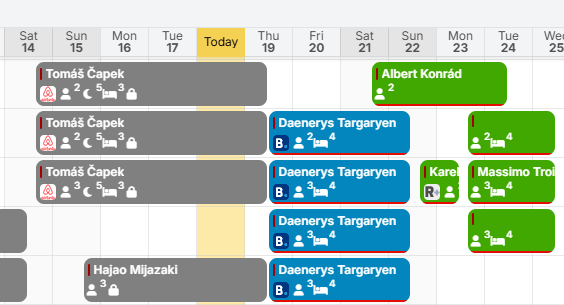
For shorter reservations, some information may be hidden. There is simply no room for it in the “reservation cell.” Similarly, if you use a smaller calendar view, where reservations are smaller in height and only have space for one line, additional information is then listed after the guest’s name.

Basic differences and distinctions between individual and group reservations
Group reservations contain one main reservation account. In this account, it is possible to filter, for example, by rooms and thus display only specific rooms for invoicing.
You can easily distinguish group reservations from individual ones:
- After clicking on a group reservation, all reservations in the group will be marked in yellow.
- When you hover your mouse over a group reservation, an expanded preview of the reservation will appear, containing information about the group account (see above).
- A group reservation contains a bed icon with a number that indicates the number of rooms in the reservation.