


Reservation detail P2
The reservation details window allows you to set all the necessary parameters for each individual reservation.
You can change the individual reservation parameters directly in the window (pencil icon next to each item – e.g., reservation date, market codes, etc.). Some of the selected actions are also available in the upper right corner under the “Options” button.
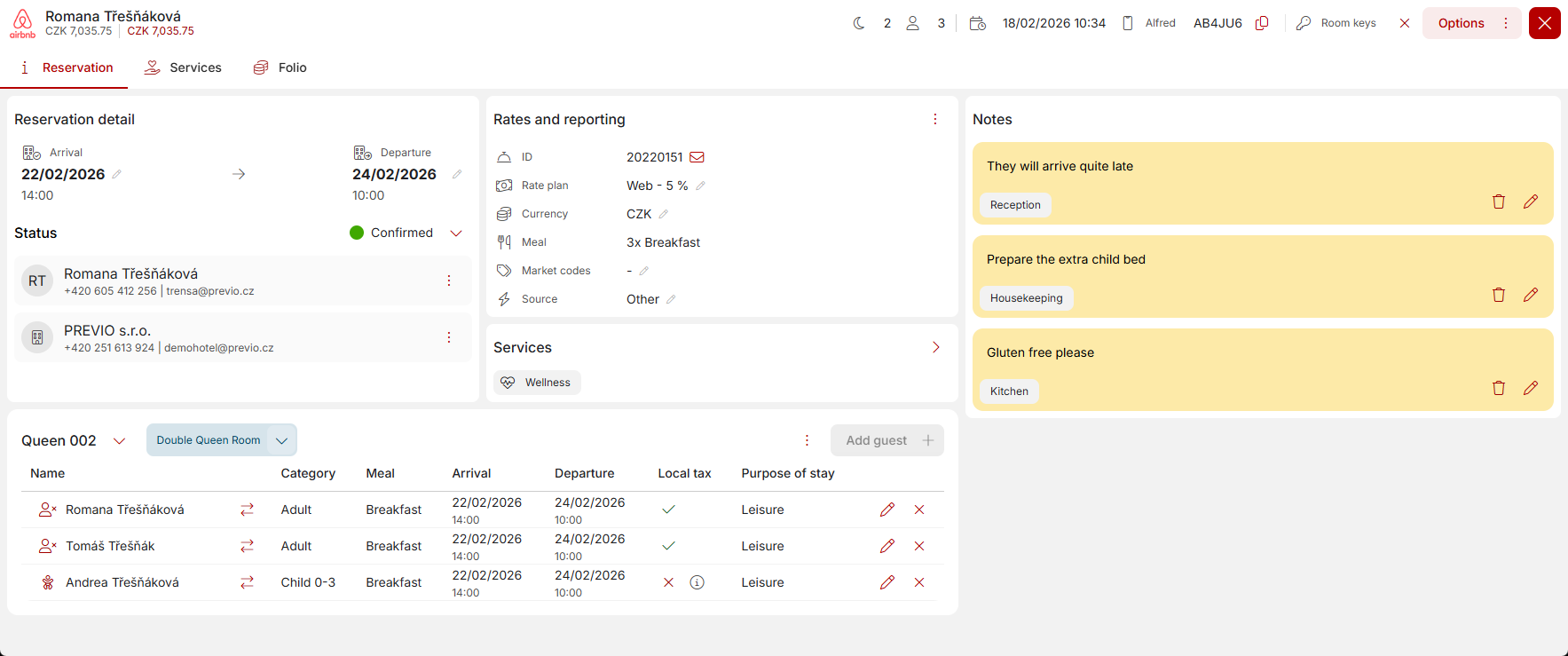
Let’s take a look at what you can find in the reservation window.
Top bar
- Partner icon
- Contact person
- Price + reservation balance
- Number of nights and persons
- Reservation creation date
- Alfred code with the option to click through to the Alfred mobile app for hotel guests
- Room PIN/key + option to generate a new PIN/key
- “Options” button – where you will find, for example, manual sending of check-in requests, sending vouchers, etc., deleting reservations, etc.)
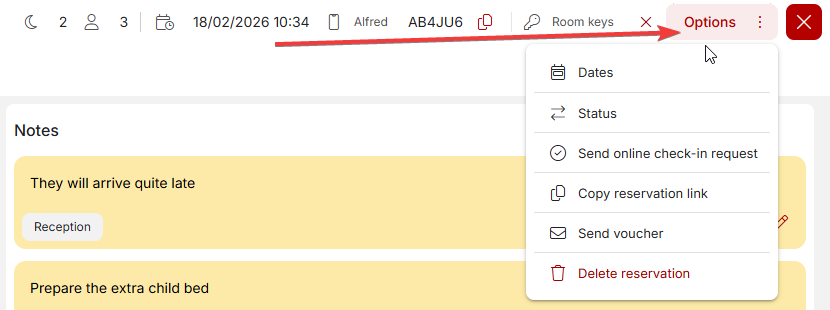
Reservation details section
- Reservation date – the reservation will respond to changes in this section. After selecting a new date, it is necessary to check availability and, if necessary, confirm the recalculation of the account.
- Reservation status – you can choose from a total of 8 statuses. Option, confirmed, checked-in, checked-out, and other are color-coded statuses that are displayed on the reservation calendar and thus block the room for further reservations. Reservations in the remaining three statuses (cancelled, no show, waiting list) are not displayed in the calendar, so they do not block rooms for sale and can be found in the reservation list.
- Contact person – (Romana Třešňáková in the screenshot above) usually the person who made the reservation. However, this may differ from the guests specified in the reservation.
- Company – (Previo s.r.o. in the screenshot above) a section linked to your company database. If the company has already had employees staying with you, simply select it from the list and do not fill in all the billing details again.
- For the company and contact person, you can also click on the “three dots” to initiate communication (send an email, WhatsApp message, or, if using a mobile phone, make a call or send an SMS message).
Rates and Overviews section
- Voucher – reservation number and the option to generate an accommodation voucher or send it by email directly from the reservation.
- Price plan – option to adjust the price plan for the reservation. This option is also available from the Account tab.
- Currency – option to adjust the currency for the reservation. This option is also available from the Account tab.
- Meals – overview of meals for all guests in the reservation
- Market codes – “tags” for entire reservations. Market codes can be used to filter, for example, in the reservation overview or in management reports. Market codes can be set in general settings.
- Reservation source – an optional field where you can select the source of the reservation (phone, walk-in, agency, etc.). Partner reservations are automatically marked as online reservations, and reservations from R+ are marked as website reservations.
Guests and rooms section
- Room name – after clicking, you can quickly change the room within the same room category.
- Room type name – after clicking, you can change the room to any available room with suitable capacity (it is also possible to move the reservation between room categories).
- List of guests with details – guest category, meals, purpose of stay, information about the accommodation fee. Guests and their parameters can be edited using the pencil button or by clicking on the name of a specific guest. Guests can also be removed using the delete button with a cross and added using the button above the table.
- Lock room change – next to the room selection, you can lock/unlock room changes (e.g., for situations where a guest books a specific room where they have already stayed and you do not want to accidentally move them to another room).
Notes
- All additional information about the stay, which is also visible from the reservation preview in the calendar. Divided into sections Reception, Kitchen, Cleaning, and the non-editable note System.
Services
- If a service linked to a specific date and space (parking, massages, etc.) is added to the reservation, it will be listed under the notes with the option to click through to more detailed information in the Services tab.
——————–
Remaining
Complete locking of the reservation against any changes – in the lower left corner, you can lock the reservation for any further modifications. Bulk locking is also possible via the cash register closing time (all reservations ending before the closing time) or automatically X hours after a certain time in Settings / System). Unlocking these completely locked reservations can be restricted by user rights.
Credit card – under the button in the lower left corner, you can find the guest’s credit card details (e.g., for NRR reservations). You can restrict individual users’ access to this item via the rights settings in Settings / Users / Roles. The window with card details closes automatically after 2 minutes.