


Guests in reservation P2
Filling in guests
For each reservation, you can adjust the number of guests up to the full capacity of the currently selected room. If you have adjusted the guest category settings, you can also add guests without a bed (usually small children) beyond the room capacity.
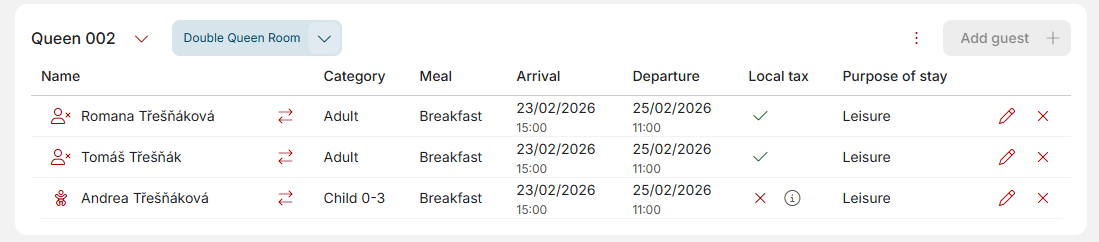
Clicking on the “Guest name” field will open the guest card for you to fill in (or, if the name has already been entered, to edit the card for a specific guest).
When you click on the edit pencil icon, you can then use the suggestion tool linked to the guest database in the side panel. When you start typing, the autocomplete feature will offer you all results that match the text you entered.
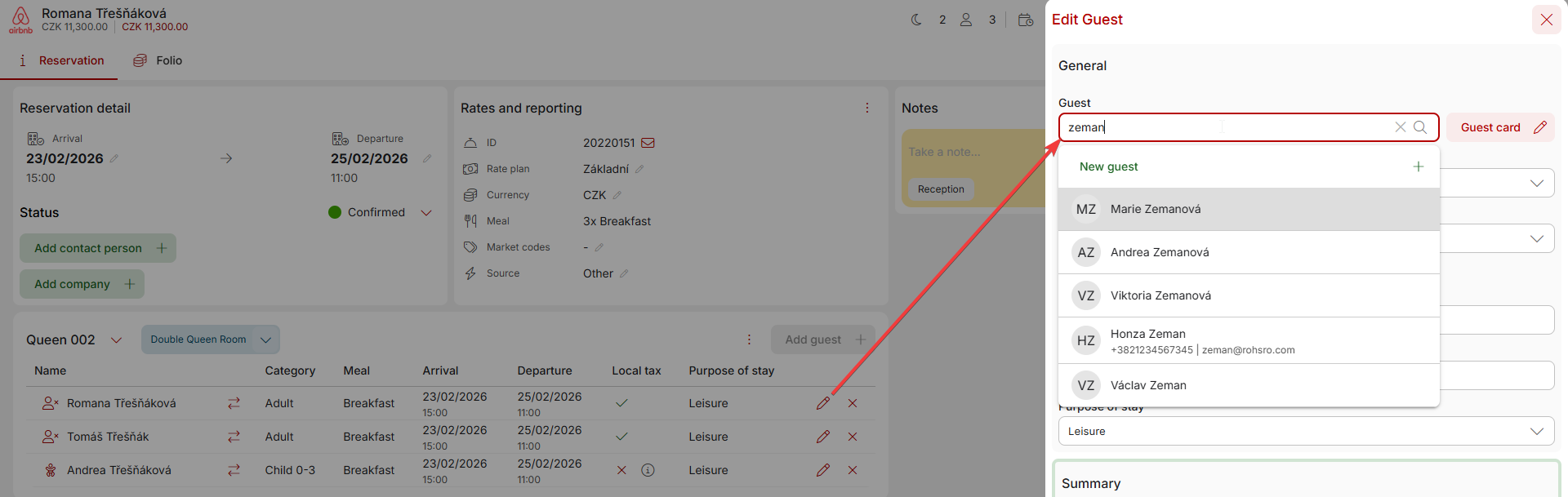
If the guest has already stayed with you, simply select them from the autocomplete feature and all their details will be automatically transferred to the reservation.
If you do not have the guest in your database, simply press Enter after typing their name or click on the +New Guest button. With the first method, you only enter the name. Clicking on the button will also open the guest card for you to fill in additional information. In the guest editing window, you can also edit other parameters such as status, purpose of stay, etc.
Filling in the guest card
You can fill in all the information about individual guests by clicking on their name or on the edit pencil icon. The following guest card will open:
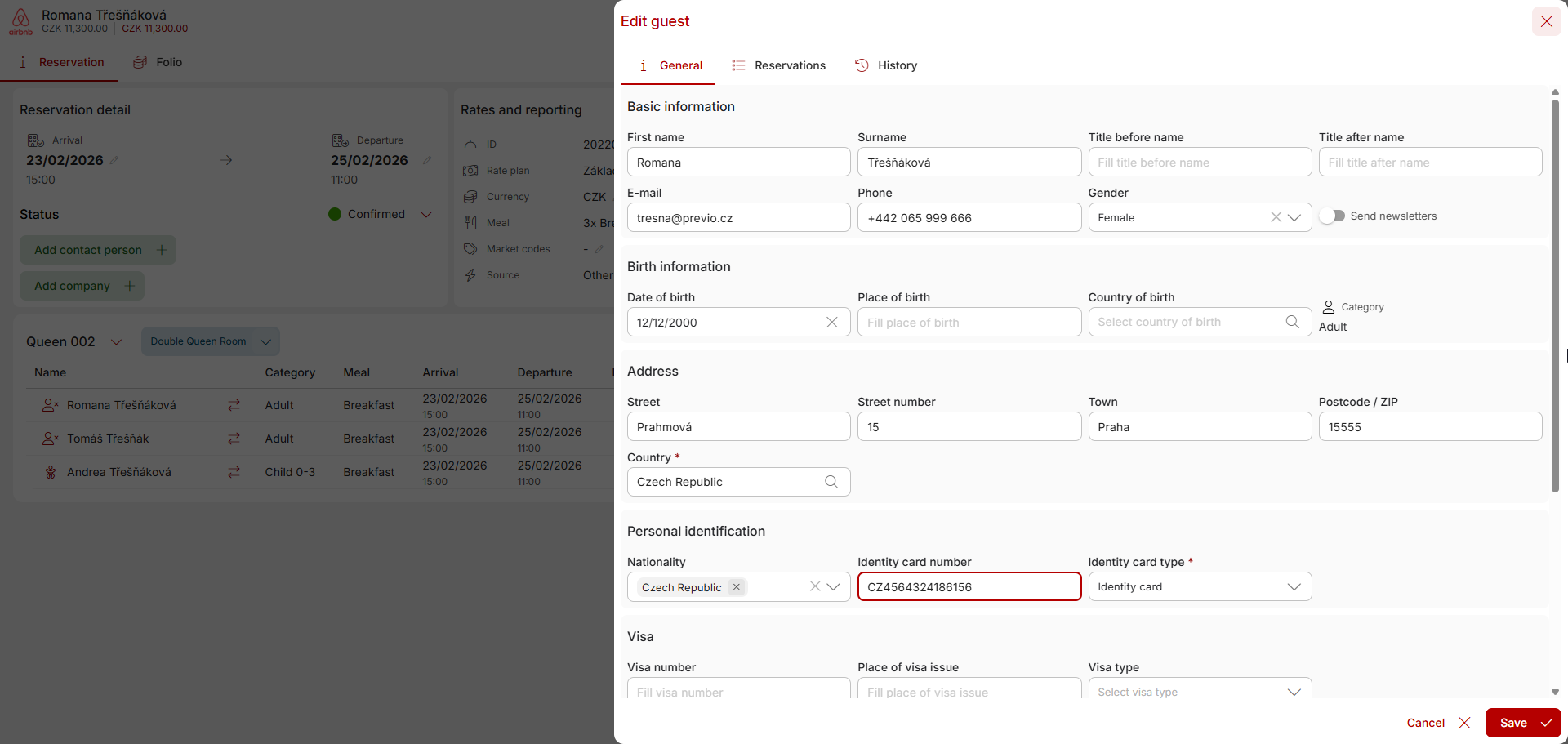
The guest card links the date of birth and age range of the guest category (which you can set). After entering the date of birth, the guest is automatically assigned to the appropriate age category (adult, child, senior, etc.).
Also worth mentioning is the Labels field, where you can freely label guests for possible future stays. You can create a label in the general settings of the Guest Database. For the next guest, the label will already be offered in the suggester.
Changing a guest
Everyone can make a mistake sometimes, so if you enter the wrong guest in the reservation, there is no need to panic.
Click on the arrow button “Switch guest”, which will allow you to select different guest from your database by entering the name.
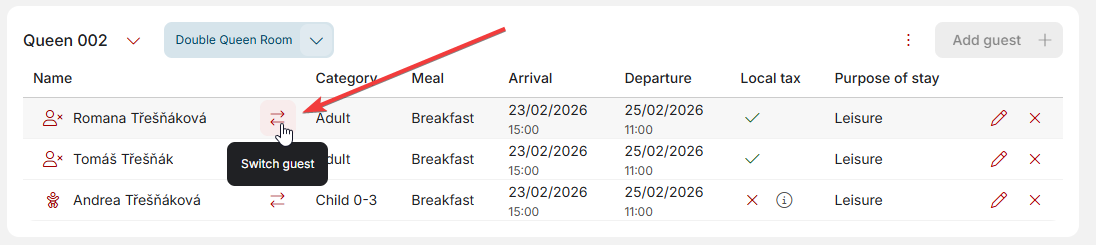
CAUTION – if you have already entered a guest and want to change them, do not click open the card of the currently entered guest and do not overwrite the information entered there! Doing so will overwrite the record of the originally entered guest in all reservations where they appeared with the information about the new guest.
Meals, accommodation fee, and purpose of stay
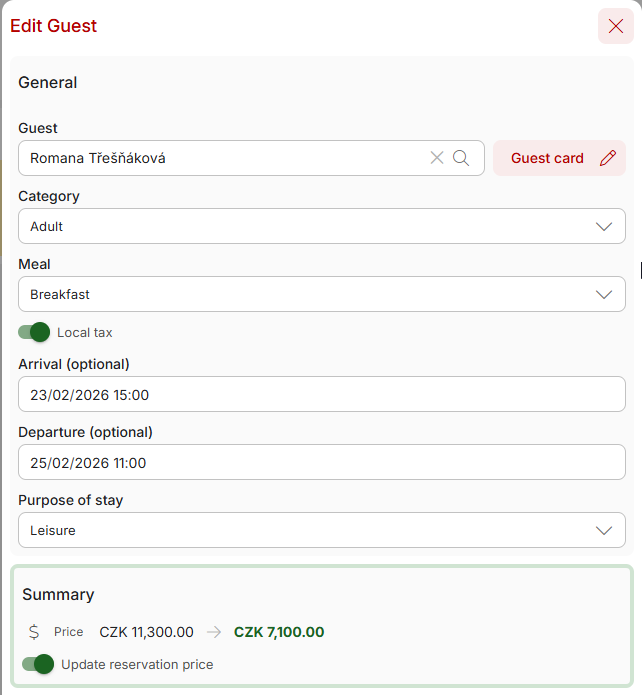
If your hotel offers meals, you can enter them for each individual guest in the reservation details. The options displayed are based on the types of meals allowed for the specific reservation period.
The selected meals will also be entered in the daily report and taken into account in the room account.
The “Switch” Local tax determines whether the guest pays the so-called accommodation fee or local tax. After unchecking, the related field is activated, where you can specify the reason for exemption from the tax/fee. At the same time, if you set the “child guest category” in the guest categories, i.e., the category with the type “Child,” the stay fee box will be automatically unchecked and the reason for exemption will be automatically changed to “person under 18 years of age.”
Information about fees is then reflected in the guest book and local tax calculation summary.
The last editable field is the purpose of the stay. This is set to “Tourism” by default and can be modified in the general settings of the guest database. This information is then reflected in the foreigner’s register.