Group reservations P2
Creating a group reservation
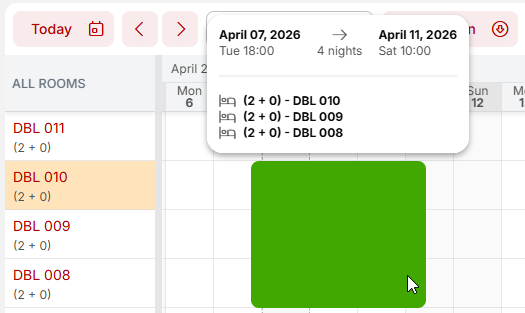
By dragging a continuous group reservation on the reservation sheet + By dragging a non-continuous group reservation on the reservation sheet while holding down the CTRL key – this will immediately open the group reservation details, see below.
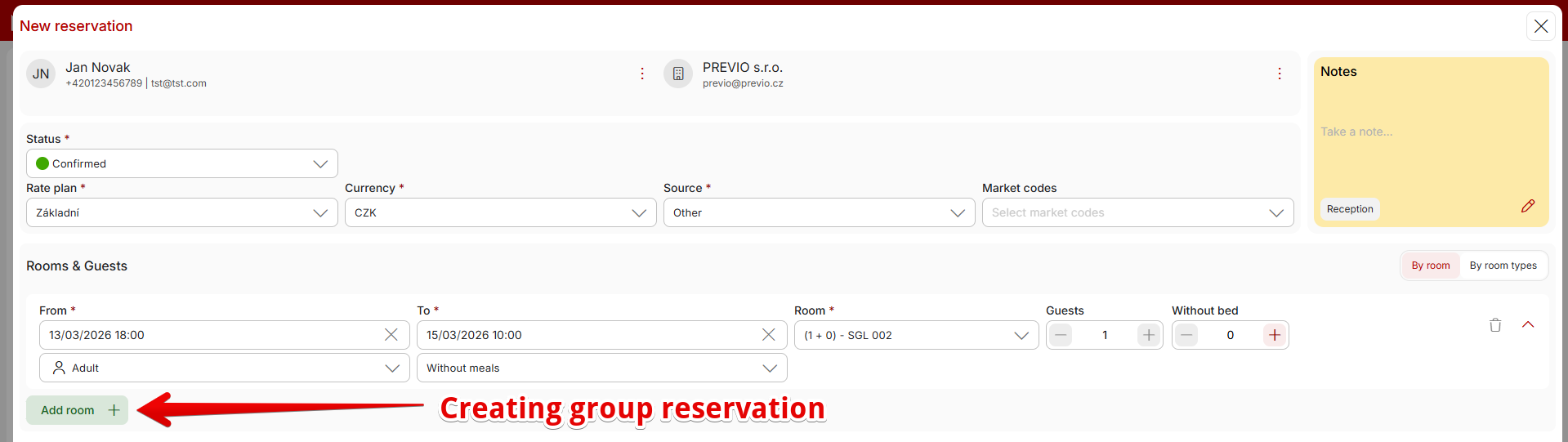
Using the New Reservation button at the top right above the reservation calendar – with this method, it is then necessary to define the date(s) and number of reservations in the group. This is suitable for smaller groups of reservations.
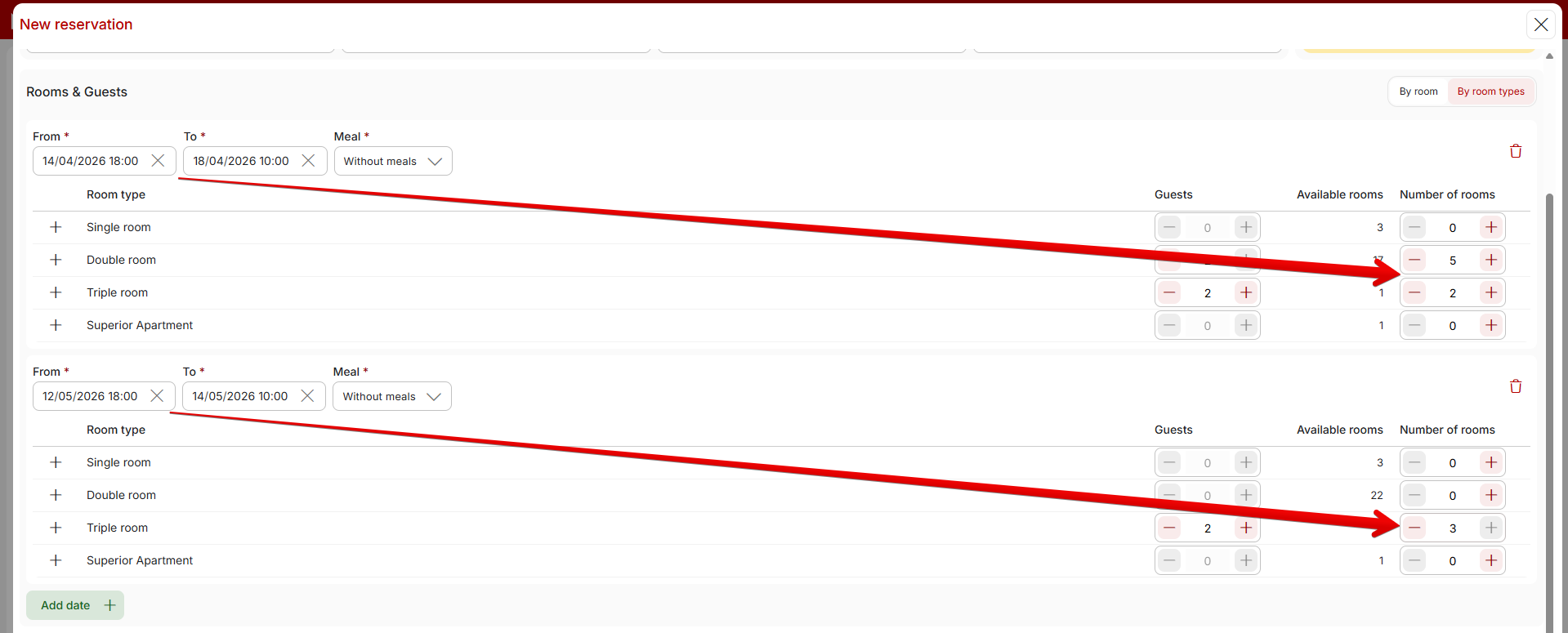
When creating a reservation you can also switch to view “by room types” which makes creating of bigger groups more smooth and simple. You select a date and then you can quickly type the number of rooms within specific room type you need, or you can unfold list of rooms under the roomtype and tick the ones you want.
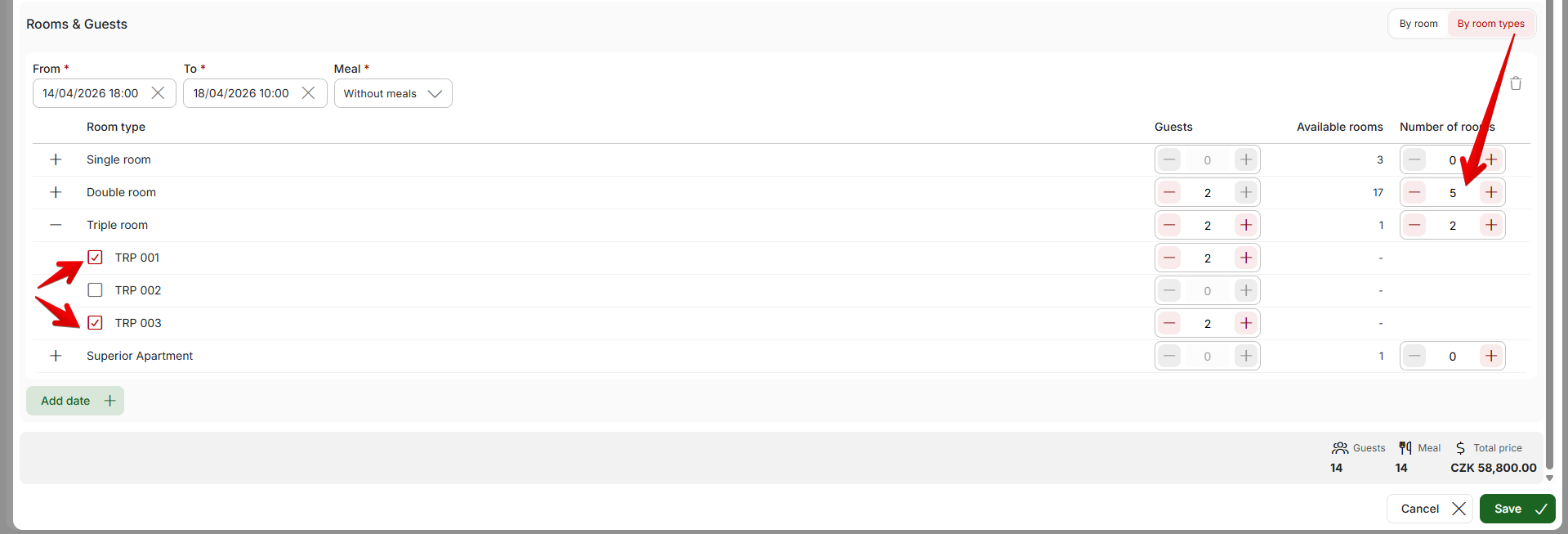
By clicking on “Add date” button, you can also select completely different date for second part of your group (and then again you specify the rooms for this second date).
Group reservation details
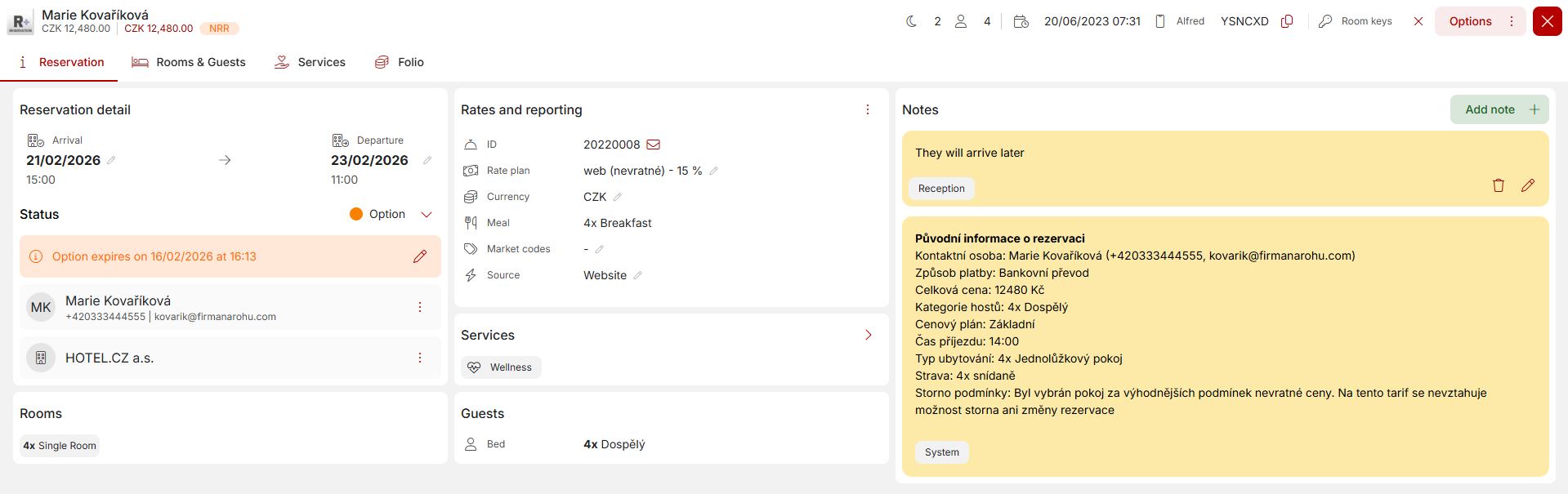
When you create a new group using the button on the screen/in the reservation overview, the above window will open, where you can fill in all the parameters of the group reservation, similar to the details of an individual reservation.
However, there are a few differences. At the bottom, instead of specific guests, there are two separate sections, Rooms and Guests, where you can find summary information about the numbers for the entire group.
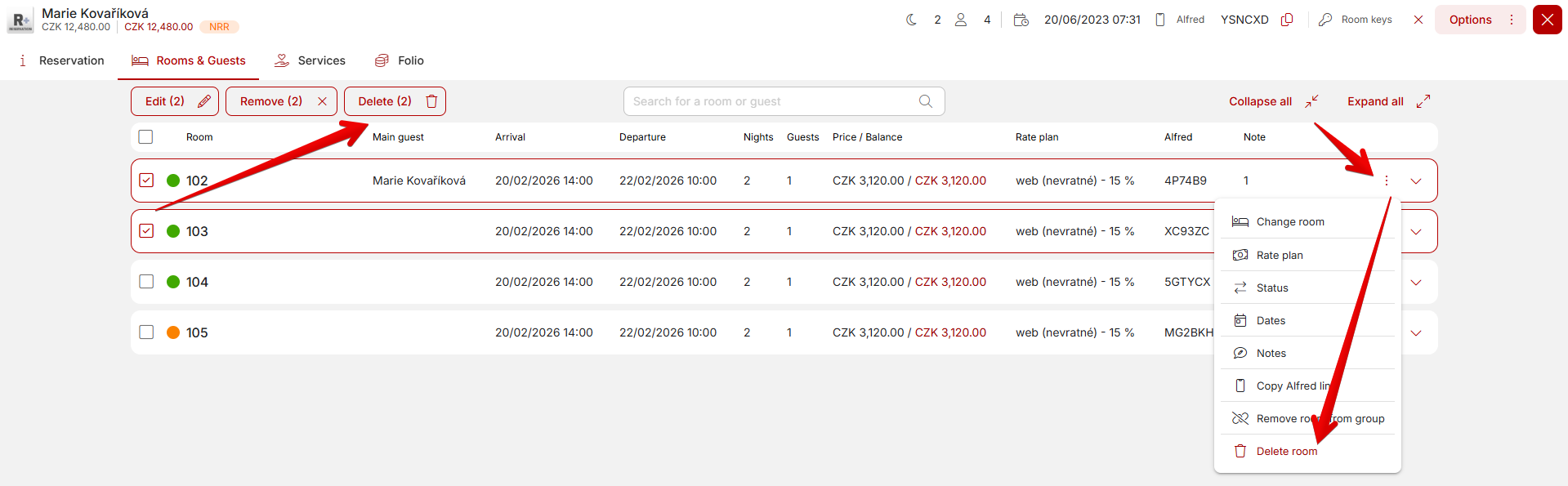
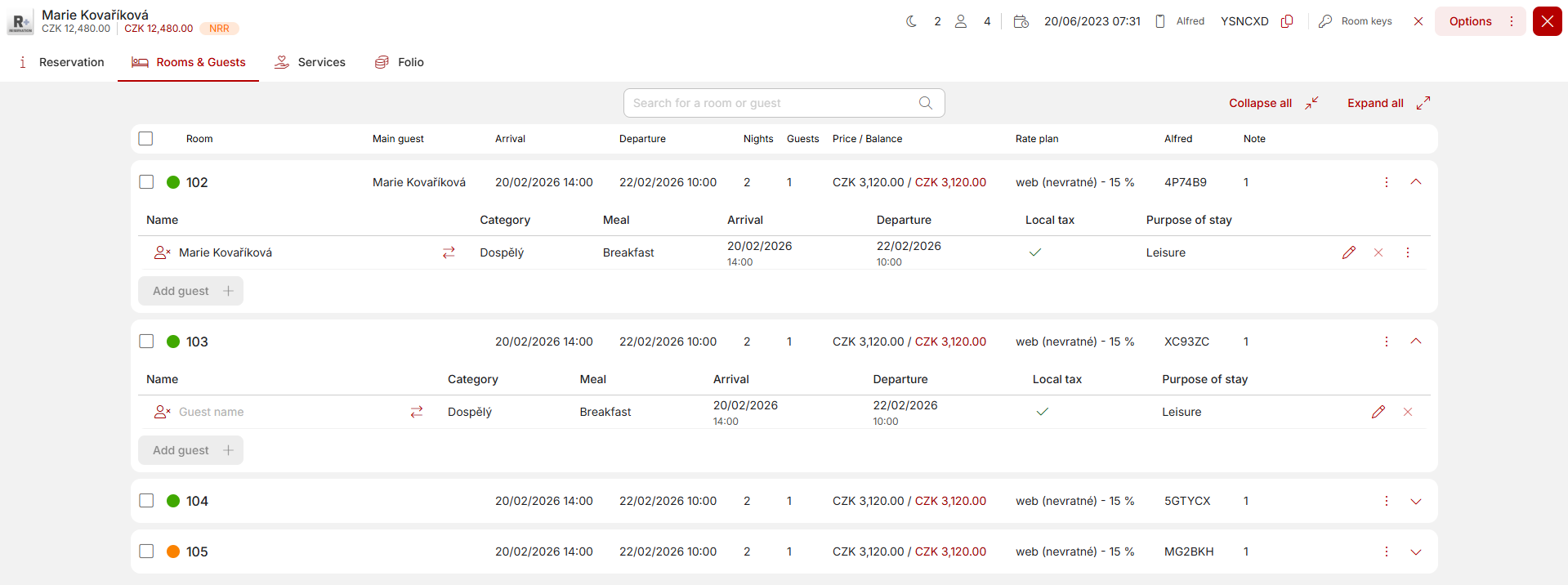
More detailed information about individual rooms can be found in the “Rooms and Guests” tab in the top bar. This section contains details of all rooms in the group and the option to edit them individually or collectively. When you open the section, it is collapsed by default and some details are hidden (e.g., the names of all guests), see below.
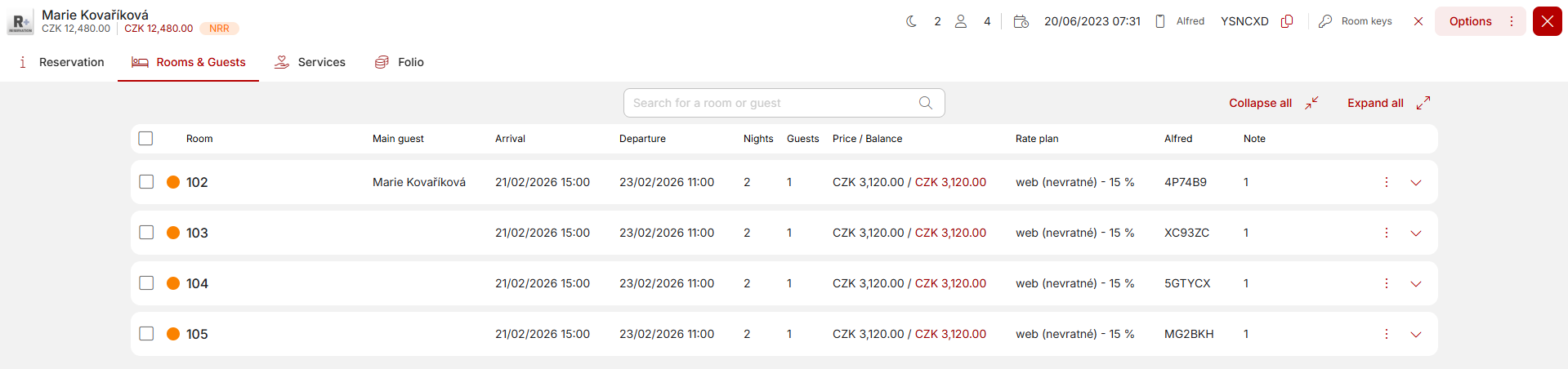 By clicking on the “Expand all” button to the right above the table, you can display additional details for individual reservations. Similarly, you can expand a specific reservation by clicking on the down arrow icon at the end of the row for that room.
 Options for editing group reservations
There are several ways to change the parameters for the entire group or only for some of their reservations.
1) Editing the entire group in the Reservations tab – you can edit the parameters at the top of the window (date, status, etc.) and the change will be reflected in all reservations in the group. If some fields are inactive (cannot be changed), it means that this value is different for different reservations in the group and therefore cannot be changed in this simplest way.
2) Bulk editing of selected parts of the group in the Rooms and Guests tab – There is a checkbox at the beginning of each row with an assigned room in the group. You can use them to select any number of rooms, and bulk editing options will appear above the table.
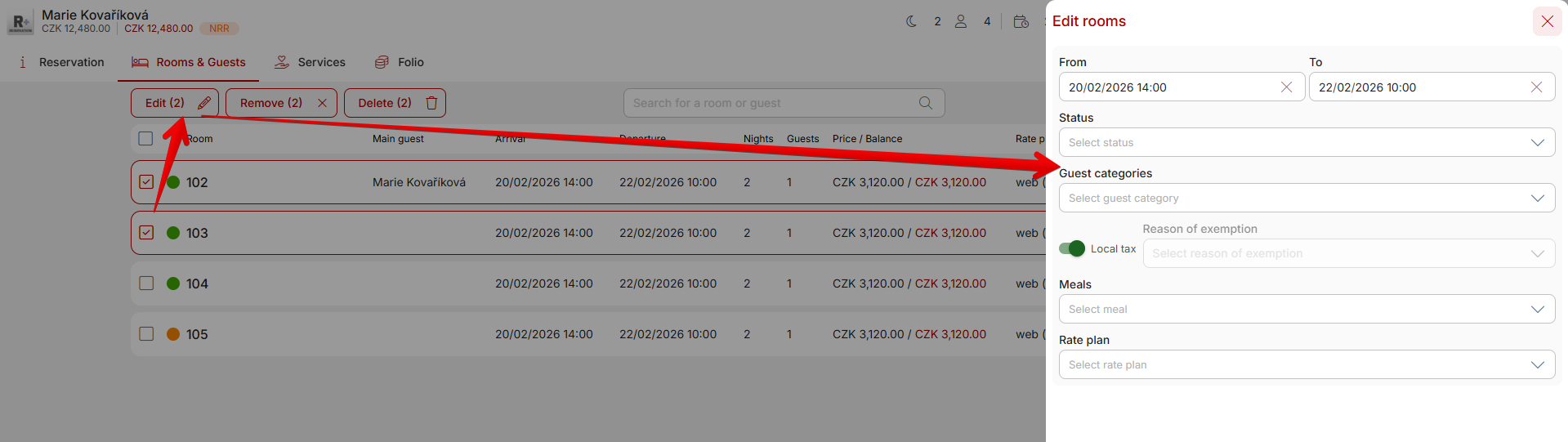
3) Editing individual rooms from the Rooms and Guests tab – at the end of the row for a specific room, click on the three dots and you will find all the options for working with and editing the room. In the room table itself, some parts are clickable (e.g., room, date, price plan, etc.), so you can make specific changes directly from the table.

Removing reservations from a group
There are several ways to separate some of the reservations in a group.
- In the group details, click on the three dots next to a specific room > option Remove room from group.
- In the group details, you can select the rooms you want to remove from the group and then remove them all at once using the button above the table.
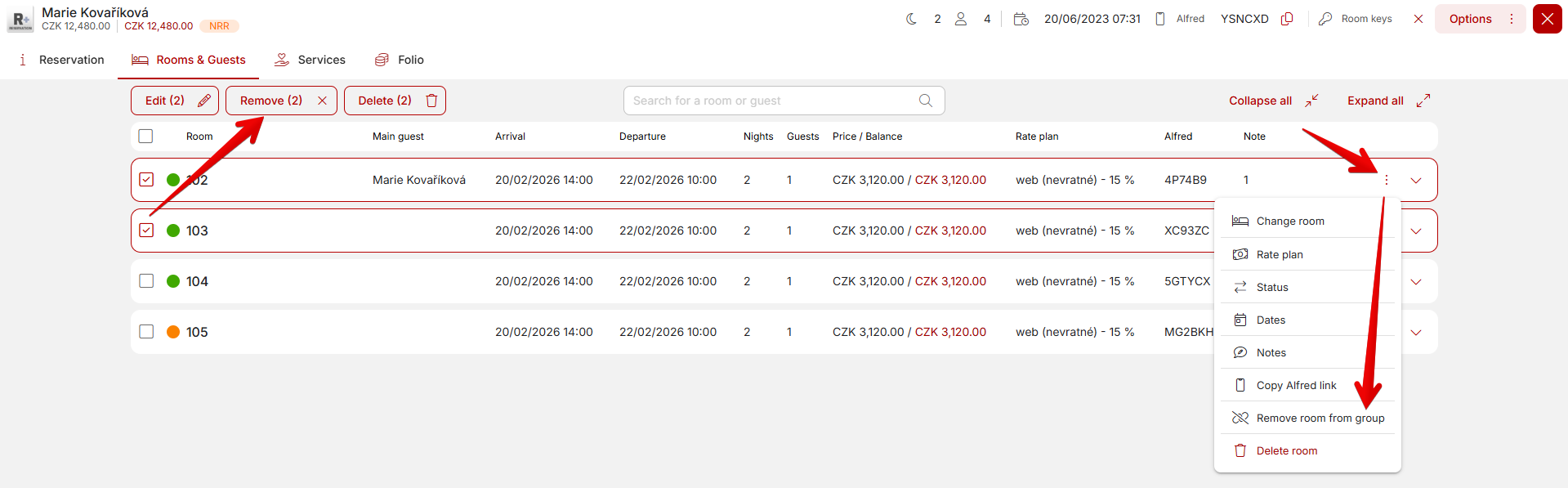
The removed reservation then functions as a separate reservation with all its details. If you remove multiple reservations at once, the behavior is different and the removed reservations become a new group reservation.
Deleting reservations from a group
Deleting rooms from a group is similar to removing them and is irreversible:
- In the group details, click on the three dots next to the specific room > Delete room option.
- In the group details, you can select the rooms you want to delete from the group and then delete them in bulk using the button above the table.